
Best Way to Use Gramlens: Run Instagram in a Separate Chrome Window
The most efficient Gramlens workflow — open Instagram in its own Chrome window, dock the sidepanel, and let long-running exports and actions run in the background while you work elsewhere.
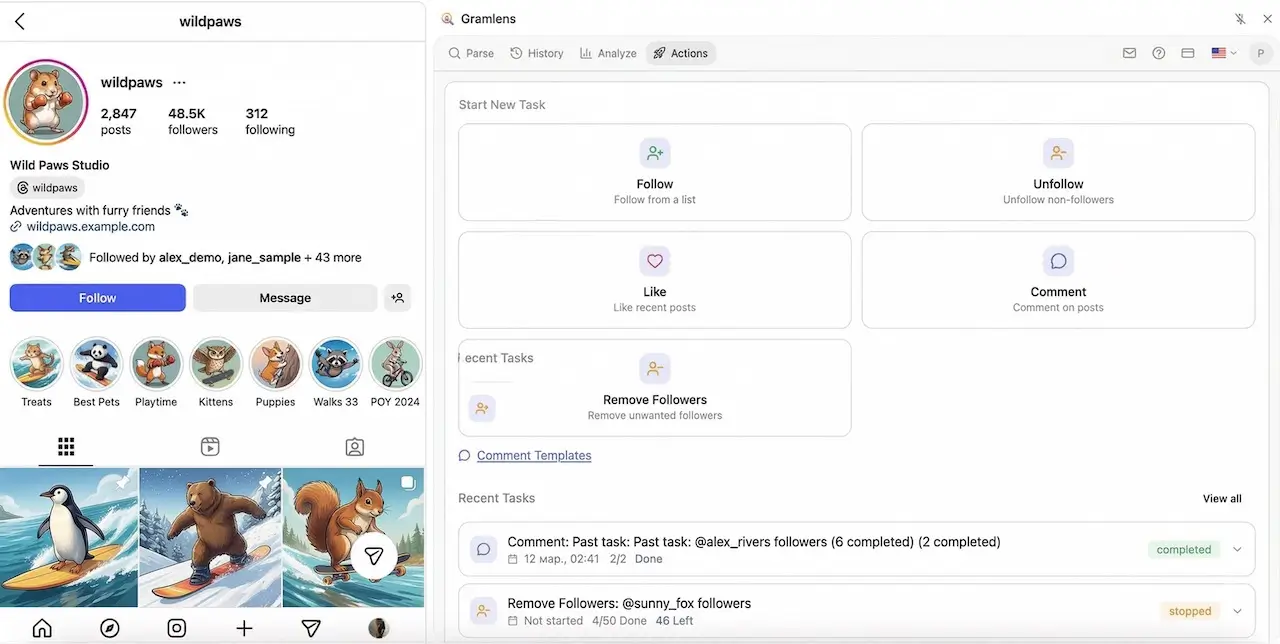
Most Gramlens users discover the tool one way: they want a CSV of someone's followers, they install the extension, they click the icon, they export, they close it. That works. But it also hides the setup that separates a casual user from someone who actually gets value out of the extension every day — because the real wins (Deep Parse of 5,000 profiles, a multi-hour follow queue, an overnight unfollower report) happen while you're doing something else entirely.
This guide walks through the workflow we recommend to every Plus user: open Instagram in its own Chrome window, dock the Gramlens sidepanel, and let the tool run in the background while you work in another window, another app, or on another monitor. It's a ten-second setup change that turns the extension from a "stop what I'm doing and export" tool into a "just let it cook" tool.
Why this matters: sidepanel, not popup
Before we get to the how, two facts about how Gramlens actually runs in your browser:
- Gramlens is a Chrome side panel, not a popup. A popup is that little bubble that pops up when you click an extension icon and disappears the moment you click anywhere else. A side panel is a real, persistent strip on the right edge of the browser window. It stays open while you scroll Instagram. You don't lose your place every time you look away.
- A side panel is bound to one Chrome window. This is the important part. Each Chrome window has its own side panel state. Open the side panel in window A, move to window B — the side panel in window B is closed. Click Gramlens in window B and you get a second independent side panel in that window, talking to a different Instagram tab.
Combine those two facts and you get the workflow: dedicate one Chrome window to Instagram + Gramlens, do everything else in other windows. The sidepanel stays right where you left it, long jobs keep running, and your "real work" windows never have Instagram staring at you from the corner of the screen.
The recommended setup — five steps
1. Open Instagram in a tab
Log into instagram.com in Chrome as you normally would. Navigate to the profile you want to work with — your own, a competitor, a creator whose audience you're analyzing.
2. Pull the Instagram tab out into a new window
Grab the tab and drag it downward and out of the current window — Chrome will detach it into its own window. Alternatively: right-click the tab → Move tab to new window.
This is the step almost nobody does on their own, and it's the one that unlocks everything else. If Instagram lives in the same window as your 40 other tabs, it competes with them for focus, memory saver treatment, and your attention.
3. Click the Gramlens icon
With the Instagram window focused, click the Gramlens icon in the Chrome toolbar. The sidepanel opens on the right side of this window. You now have Instagram on the left, Gramlens on the right, and nothing else getting in the way.
If you don't see the Gramlens icon, click the puzzle-piece extensions icon, find Gramlens, and hit the pin button — this permanently docks it to your toolbar.
4. Size the window so both sides breathe
Instagram's web UI starts to look cramped below ~800px of content width. The sidepanel takes another ~400px. So you want the window at roughly 1280px wide minimum — 1440px is more comfortable. If you're on a laptop screen, this is most of your horizontal space; if you're on an external monitor, it's about half.
If you have two monitors: park the Instagram + Gramlens window on your secondary monitor and keep your primary monitor for everything else. This is the single biggest workflow upgrade you can make with this extension.
5. Start your job, then go back to work
Start whatever you need — a follower export, a Deep Parse, a follow/unfollow campaign, a comment extraction. Then switch windows. Alt+Tab / Cmd+Tab to your IDE, email, Figma, the other Chrome window with your actual work. Gramlens keeps running.
What you can and can't do while a job is running
The extension is more robust than most people expect, but it does have real constraints. Here's the honest breakdown.
You can:
- Close the sidepanel. The action queue lives inside the Instagram tab itself, not the sidepanel UI. You can close the sidepanel, re-open it an hour later, and pick up a live progress bar. This catches a lot of new users off guard — the sidepanel is a control surface, not the engine.
- Minimize the Chrome window. Chrome keeps processing minimized windows. Actions continue, exports continue.
- Switch to another app. macOS and Windows both keep background Chrome windows fully alive.
- Open a second, unrelated Chrome window for your actual work. Browsing in window B doesn't disturb the Gramlens window A at all — same profile, same cookies, zero conflict.
- Lock your screen. Jobs keep running on the locked machine as long as you don't let it sleep.
You can't:
- Close the Instagram tab. This is the one hard rule. Gramlens works by scrolling and reading the Instagram DOM — close the tab and there's nothing to scroll. The job stops immediately.
- Navigate that tab away from Instagram. Same reason. Park the tab on the profile, leave it alone.
- Reload the Instagram tab mid-run. A reload throws away the scroll position. Small parses recover; very large parses restart.
- Let the laptop sleep. Chrome suspends background tabs when the OS sleeps. On macOS, disable App Nap for Chrome (or just plug in and keep the lid open) before kicking off multi-hour jobs. On Windows, change the power profile to "never sleep while plugged in."
- Log out of Instagram on any tab. Your session is shared across tabs. Logging out anywhere kills the Gramlens run.
One more thing: Chrome Memory Saver
Chrome aggressively freezes tabs in the background if the browser decides they're idle. For Instagram + Gramlens this is bad — a frozen tab can't scroll. Two fixes:
- Whitelist Instagram. Go to
chrome://settings/performance→ under Memory Saver, click Always keep these sites active → addinstagram.com. This is the clean solution. - Keep a sliver of the window visible. If even the edge of the Instagram window is visible on screen, Chrome tends not to freeze it. Not as reliable as the whitelist, but a decent fallback.
What this workflow unlocks
This setup doesn't change what the extension can do — it changes how painlessly you can do it.
Long parses become unattended parses
A follower export of a 200,000-follower account takes tens of minutes. A Deep Parse of 5,000 profiles takes several hours. In the "click and wait" workflow, those jobs feel like a commitment — you start one and then sit there watching the progress bar tick. In the separate-window workflow, you start the job, flip back to your real work, and check the History tab when you remember. The export is waiting for you when you get to it.
Actions campaigns stop being scary
The Actions tab (follow and like in Safe mode are free; comments, unfollow/remove and faster speed modes are on the Pro plan) is rate-limit aware by design. It deliberately runs slowly: hundreds of actions spread over hours, with session gaps every 150-250 operations, jitter on every delay, and automatic pause on errors. Done properly, a single campaign is often a multi-hour job.
Nobody is going to sit and watch that. In the background-window workflow, you queue it, confirm the limits, and let it run. Pause and resume work even after you close the sidepanel — state is persisted, not held in memory. Cleaning up after a bot follower attack is the textbook example — see how to clean up a bot follower attack on Instagram.
Unfollower tracking becomes passive
Set up daily tracking on the accounts you care about. Your dedicated Instagram window boots in the morning, Gramlens picks up the scheduled check, and by lunchtime the report is waiting in History. No step in your day is "check unfollowers" — it just gets done.
Comparisons happen while you're in meetings
Comparing two large audiences (overlap, differences) takes real time because each list has to be pulled first. Kick it off before a meeting, come back to the result.
Power-user tips
A handful of small changes that compound once you've been using the extension for a while:
- Pin the Gramlens icon to the Chrome toolbar. No more hunting through the puzzle-piece menu.
- Use a dedicated Chrome profile for Instagram work. Switch Chrome profiles (top-right avatar → Add) and log into Instagram there. Cookies, extensions, and history stay isolated from your personal browsing, and you can close the profile window without affecting anything else.
- Enable Instagram dark mode (Instagram settings → Appearance → Dark). Hours of looking at the bright IG white is genuinely tiring; dark mode is not.
- Put the Instagram window on your secondary monitor and forget about it. This is what most long-term Plus users end up doing.
- Disable sleep for multi-hour jobs. On macOS: System Settings → Displays → Advanced → Prevent automatic sleeping when display is off. On Windows: Settings → Power → Screen and sleep → set sleep to Never while plugged in.
- Check the History tab first, not the live progress. Once you're trusting the tool to run unattended, History is where you look for results. Treat the live sidepanel as optional.
Common mistakes
Four patterns we see from new users that this workflow fixes:
- Closing the Instagram tab after closing the sidepanel. People assume Gramlens holds its own state and the tab is just a window. It's the opposite — the tab is the engine. Close the sidepanel all you want; leave the tab.
- Running Instagram in a window with 40 other tabs. Chrome's memory saver is more aggressive on busy windows, and you're more likely to accidentally close the Instagram tab. Dedicate a window to it.
- Starting a parse and immediately navigating the same Instagram tab to a different profile "to check something." The parse is reading the current page — if the URL changes, the data you get back is a mix of both profiles, or the run fails. Open a second Instagram tab in the same window if you need to browse.
- Running two Gramlens jobs against the same tab simultaneously. One job per tab. If you need parallelism, open another Instagram tab (in the same window or a different one), each tab gets its own side panel instance.
FAQ
Do I have to keep the Gramlens sidepanel open while a parse or Action is running?
No. The sidepanel is a control panel — start, pause, monitor — but the actual work runs inside the Instagram tab. Close the sidepanel, go do something else, come back, reopen the sidepanel and you'll see current progress.
Can I close Chrome entirely and resume later?
Partially. Closing Chrome stops the in-flight job (the Instagram tab goes away). But Action campaigns on the Pro plan persist their queue and progress — restart Chrome, reopen Instagram, reopen Gramlens, and you can resume where you left off. Individual follower exports, however, don't resume mid-flight: close Chrome during an export and you'll need to restart it.
Does Gramlens work in Firefox, Safari, or Edge?
Edge — yes, because Edge is Chromium and runs Chrome extensions. Firefox and Safari — no. The entire extension is built on Chrome's Manifest V3 and the Chrome side panel API, neither of which has a cross-browser equivalent.
What if Chrome freezes my Instagram tab?
Two options. Add instagram.com to the Memory Saver whitelist at chrome://settings/performance — this is the clean fix. Or, if it keeps happening, keep the Instagram window slightly visible on screen rather than fully behind other windows. Chrome is much less aggressive about freezing foreground windows.
Can I run two Gramlens windows in parallel?
Yes, as long as each has its own Instagram tab and each starts a different job. The two side panels are independent. In practice, two simultaneous large parses from the same Instagram account will hit rate limits faster than one, so there's a limit to how useful this is — but for "parse account A while a Deep Parse runs on account B," it works fine.
Does a sidepanel use more memory than a popup?
Slightly more, because it stays rendered. But it's a thin React UI — we're talking tens of MB in the sidepanel process, which is nothing compared to the Instagram tab itself. Not a reason to avoid it.
TL;DR. Pull Instagram into its own Chrome window. Dock the Gramlens sidepanel. Size it to at least 1280px wide. Kick off your parse, your Deep Parse, your follow campaign — then switch to another window and go do your actual work. Don't close the Instagram tab, don't let the laptop sleep, and whitelist instagram.com in Chrome's Memory Saver. Everything else the extension can do, you already know — this is the setup that makes it painless to actually use.