
How to Export Instagram Followers to CSV in 2026 (Step-by-Step)
A practical guide to exporting Instagram followers, following lists, and engagement data to CSV or Excel — without sharing your password or risking your account.
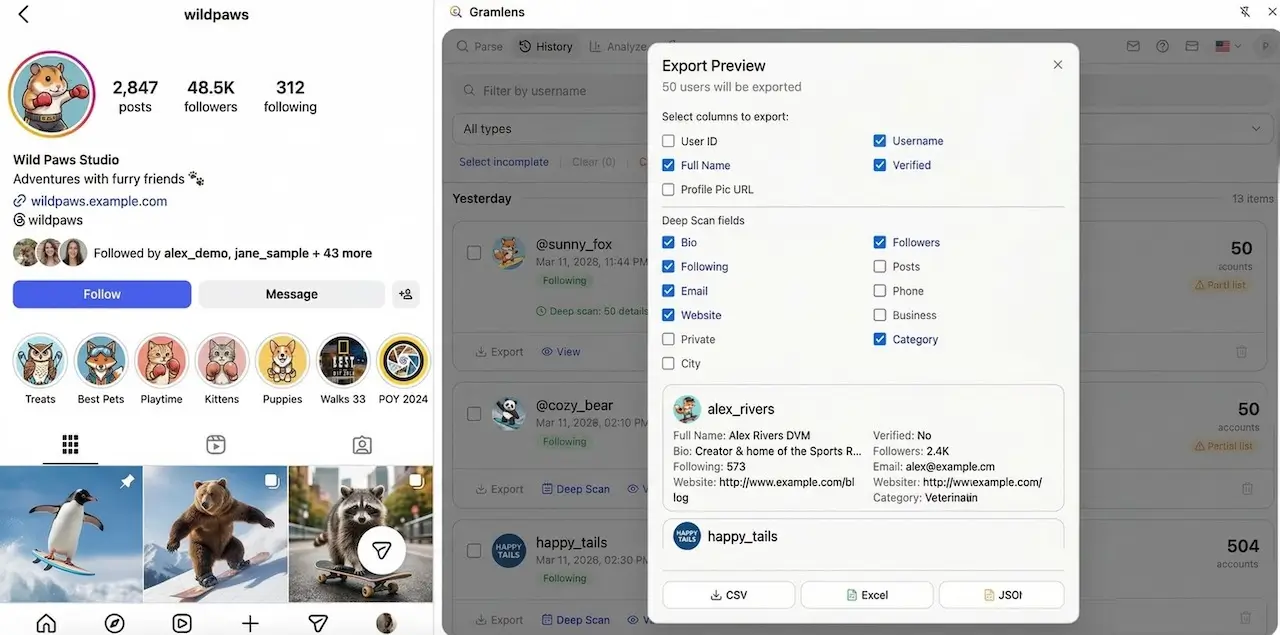
Exporting Instagram followers used to mean writing a scraper, juggling proxies, and praying your account survived the week. In 2026, you don't need any of that — a well-behaved browser extension can hand you the full list in a clean CSV in under a minute, using nothing but the data Instagram already shows you when you browse.
This guide walks through the whole process: what the export actually contains, how to do it with a Chrome extension that runs in your own browser, and how to enrich the list with emails, phone numbers, and business details when you need to go further.
What exporting Instagram followers actually means
When people say "export Instagram followers", they usually mean one of three things:
- A follower list — the profiles who follow a given Instagram account, usually with username, full name, avatar, and a few profile signals (private/public, verified, business account).
- A following list — the profiles a given account follows.
- Engagement data — commenters and likers on specific posts, typically exported for giveaways, lead generation, or competitive research.
There is no official Instagram API for most of this data. That doesn't mean it's hidden — Instagram shows it to you every time you scroll a profile. A browser-based exporter simply captures what's on the page, structures it, and writes it to a file.
The practical implication: everything you can legitimately see in your browser, you can export. Everything locked behind privacy controls, you cannot. Private account followers remain private, regardless of the tool.
What you'll need
- Google Chrome.
- A free Instagram account, logged in as usual. You'll never paste your password into the exporter — it reads the profile through your own authenticated session.
- The Gramlens Chrome extension — free plan lets you export up to 500 items per month without a credit card.
You do not need:
- A desktop app.
- A separate proxy or VPN.
- Any Instagram API key.
- A paid plan to get started — the Free tier covers most individual use cases.
What to know before you start
Two practical constraints worth knowing up front — they're not deal-breakers for most use cases, but it's fair to put them on the table before you install anything.
- Your browser has to stay open during the export. Gramlens runs inside the Chrome tab — close Chrome or hibernate the laptop and the job stops. For small exports (a few hundred followers) this is invisible: it finishes in seconds. For large exports (tens of thousands), plan on leaving Chrome open and the computer awake for the duration. You don't need to use Chrome — minimise it, lock the screen, go do something else. Just don't hibernate.
- No mobile app, no cloud job queue. There's no iOS/Android app, and no server-side worker that keeps running after you close your laptop. The upside: everything stays in your browser session — which matters for the safety argument below.
If you specifically need a server-side scraper that runs while you sleep, a cloud-based competitor is probably a better fit — but expect to pay several times more and give up the "runs only in your own authenticated session" safety guarantee.
Step-by-step: export followers to CSV
1. Install the extension
Add Gramlens from the Chrome Web Store. It installs in a couple of seconds and asks for the standard extension permissions needed to read the Instagram tab you're on — nothing about your credentials or other sites.
After installation, pin the Gramlens icon to your toolbar for easy access.
2. Open any Instagram profile
Navigate to any Instagram profile — your own, a competitor, or a public account whose audience you want to understand. Click the Gramlens icon. The extension opens as a Chrome side panel next to the Instagram tab.
You'll see a summary: follower count, following count, and a list of what's available to export for this profile.
3. Choose columns and export
Pick the columns you want. For a basic follower export, the defaults (username, full name, profile URL, is_private, is_verified) are usually enough. If you plan to de-duplicate against a CRM, include the numeric Instagram ID — usernames change, IDs don't.
Click Export. Gramlens walks through the follower list at a conservative, rate-limit-friendly pace, building the list in memory. When it's done you can download as CSV, Excel (.xlsx), or JSON.
The CSV opens in any spreadsheet tool, including Google Sheets, Numbers, or Excel. Column order is stable, so you can append exports from multiple accounts to the same file.
Going further: enrich with Deep Parse
A plain follower list — usernames and display names — is useful for audit and analytics, but it's thin for lead generation. Deep Parse is the step where the exporter visits each profile and extracts the public contact details people put in their bio and business category: email, phone number, website, business address, Instagram category.
This is the difference between "I have 2,000 usernames" and "I have 380 usernames with a business email I can put in a drip campaign". On Gramlens, Deep Parse is on the Free plan for up to 500 records and unlimited on Plus — the workflow is the same as a basic export, you just flip a toggle before running.
Practical note: Deep Parse is slower than a basic export because it opens each profile in turn. For a list of 5,000 followers, plan on several hours of unattended runtime. It's fine to leave Chrome open and let it work.
Who exports Instagram followers, and why
The three most common use cases we see:
- B2B prospecting. You have a competitor in your niche with 50,000 followers. You export their audience, run Deep Parse to get business emails, filter to accounts tagged as businesses, and have a targeted cold-email list tied to a buyer signal (they care enough to follow your competitor). At $10/month for unlimited runs, the plan pays for itself the first time one of those cold emails becomes a customer — and agency pricing for the same list elsewhere tends to start at hundreds per month.
- Audience analysis. Marketers compare two accounts' audiences — overlap, differences, segmentation by category — to plan collaborations or sponsorships. Exporting both follower lists and diffing them is the fastest way to do this.
- Giveaway fairness. Brands running giveaways need to pick a winner at random from genuine entrants. Exporting the comments on a giveaway post, de-duplicating by user, and running a random picker is the defensible way to do it.
Is it safe for your Instagram account?
Four things to understand about safety:
- Rate limiting matters. Instagram does detect unusually fast profile loads and will temporarily limit your account if you hit it too hard. A good exporter pages through followers at a conservative pace — hundreds, not thousands, of requests per minute — and pauses when Instagram signals to slow down. Gramlens does this automatically.
- You're always logged in as you. Because the exporter runs in your own browser with your own session, Instagram sees normal browsing behavior. You're not routing through a suspicious data center IP.
- Your password is never shared. Good exporters never ask for your Instagram password. If one does, walk away.
- Your exported data stays on your device. The follower list never touches Gramlens servers — it lives in your browser memory during the run and ends up as a CSV on your disk. No cloud sync, no shared storage, no mystery third-party processors. If your compliance team ever asks "who else sees this data?" — the honest answer is nobody but you. That's a meaningful difference from cloud-based scrapers that funnel your exports through their infrastructure.
The practical risk profile: exporting a few profiles a week, at reasonable sizes, is indistinguishable from enthusiastic browsing. Exporting 50+ large accounts in a single afternoon is a different story. If you're running high-volume operations, split the work across multiple days or multiple accounts.
Frequently asked questions
Is exporting Instagram followers legal?
You're exporting data that is publicly visible through your own authenticated session — the same data Instagram shows you when you scroll. That's generally analogous to copying a publicly visible web page. It's not the same as hacking, credential stuffing, or bypassing privacy controls, all of which are illegal and which Gramlens explicitly does not do.
That said, what you do with exported data matters. GDPR, CCPA, and similar regulations apply to how you store, use, and contact people. Cold-emailing EU individuals without a lawful basis is a legal risk regardless of where the email came from. Talk to a lawyer before running large commercial campaigns.
Will this get my account banned?
Not if you use it responsibly. Instagram's anti-abuse systems target volume and velocity, not the existence of exports. A conservative rate-limit-aware exporter running a few sessions a week is safe for most accounts. Back off if Instagram shows you a "Try again later" message — that's the system working as intended.
How many followers can I export at once?
Technical limits are high — Gramlens users regularly export accounts with hundreds of thousands of followers in a single job. The binding constraint is Instagram's rate limiting (slower on very large exports) and your plan's monthly quota (500 items on Free, unlimited on Plus).
Can I export followers of a private account?
Only if you follow that account and Instagram would already show you its follower list. The exporter can't see data that's privacy-locked against your Instagram session — that's a good thing.
What fields are in the CSV?
At minimum: username, full name, profile URL, Instagram numeric ID. Optional: is_private, is_verified, profile picture URL, business category, follower/following counts. With Deep Parse: email, phone, external website URL, business address, linked WhatsApp/Telegram, Instagram bio text. You pick which columns you want before export.
Does the extension work for Instagram comments and likes?
Yes. Same workflow: navigate to a post, open Gramlens, pick "Export comments" or "Export likes". Output structure is similar — usernames, display names, comment text (for comments), and timestamps.
Can I remove fake or bot followers with Gramlens?
Yes — and exporting your own follower list is the first step. If a wave of fake accounts hit your profile, see how to clean up a bot follower attack on Instagram for the full bulk-removal workflow (the Remove Followers action is a Pro feature).
If you want the shortest possible summary of this article: install Gramlens, open a profile, click Export, pick your columns, download the CSV. The rest is just what to do with the file once you have it.