
Instagram Automation Chrome Extension: Gramlens Actions
An honest how-to for Gramlens Actions — the Instagram automation built into the Chrome extension: follow, like, comment, unfollow and remove followers, safely paced.
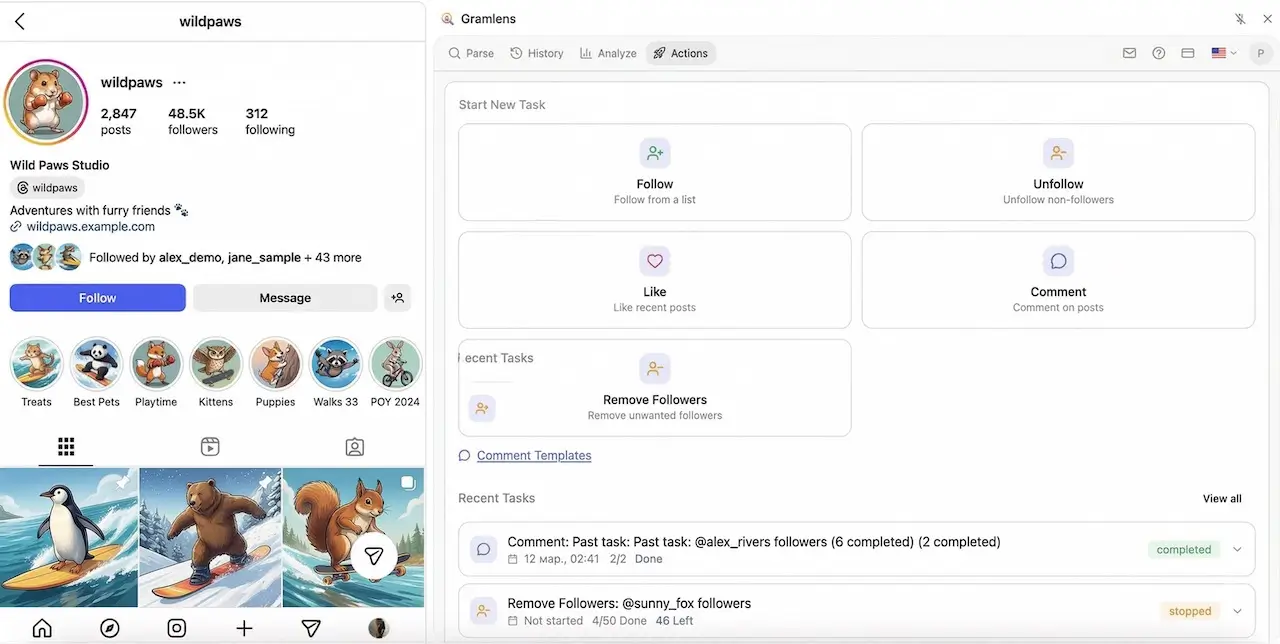
Most people meet Gramlens as an exporter — they pull a CSV of someone's followers and move on. Actions is the other half of the tool: an Instagram automation Chrome extension feature that takes a list you've already parsed and does something with it — follow, like, comment, unfollow, or remove followers — one account at a time, at a deliberately human pace, in the background.
This is a full walkthrough of how Actions works: the five things it can do, every step of the setup wizard (with a screenshot of each), what the safety engine is actually doing under the hood, and exactly which parts are free versus Pro. It's an honest guide — including the parts where the tool intentionally slows you down, and the part where automating anything on Instagram is against their Terms of Service.
What Actions actually is
The mental model is three moves: parse an audience → optionally filter it → run an action against it.
The important word is parse. Actions never collects accounts live while it's running — it works off a list you already exported. So the first step is always a regular parse: open a profile, grab its followers or following (the same flow covered in how to export Instagram followers to CSV). That saved list becomes the Source for a campaign. Actions then walks the list and performs one action per account, pacing itself to look like a person, not a script.
Everything runs inside your Instagram browser tab, not on a server. That has real consequences for how you run a campaign — covered in the caveats below — but it's also what keeps Gramlens working purely from the data Instagram already shows you when you browse.
The five actions
Actions are grouped exactly the way the wizard groups them.
Engagement — these can be combined into one campaign, and always run in the order follow → like → comment:
- Follow — follows each account in the source list.
- Like — likes a few of each account's most recent posts.
- Comment — posts a comment (from your templates) on a few of their recent posts.
Manage — these act on your own connections, one action per campaign:
- Unfollow — unfollows the accounts in the list.
- Remove Followers — force-removes accounts from your followers (it does not block them).
Every action needs a source list. Like and Comment additionally need a per-user count (and Comment needs at least one template). Manage actions typically run against your own followers or following.
The wizard, step by step
Starting a campaign walks you through a short stepper. The example below is a full Follow + Like + Comment campaign, which is why all six steps show up — a Follow-only campaign skips the Settings step, since there's nothing to configure there.
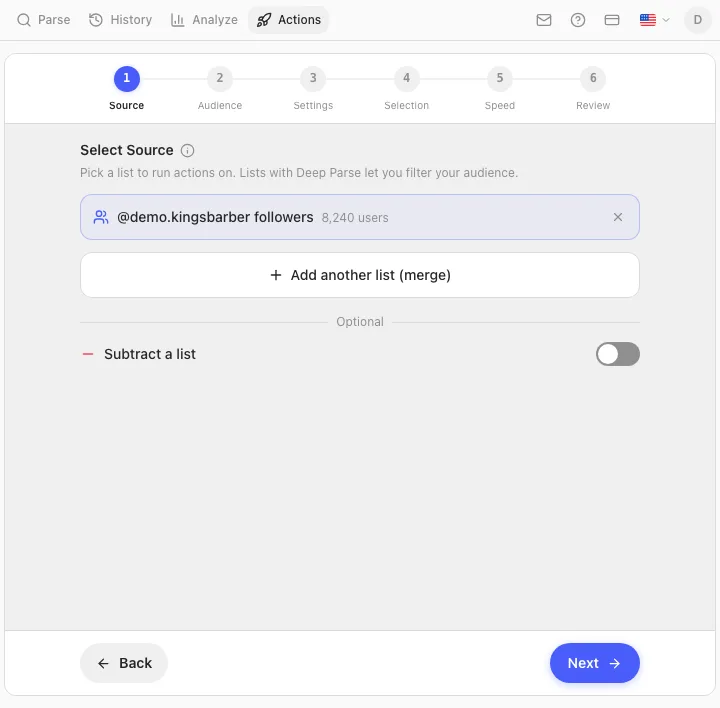
Step 1 — Source
Pick the parsed list to act on. You can act on a single followers/following export, merge several lists into one audience, or subtract one list from another (handy for "everyone who follows A but not B").
Step 2 — Audience
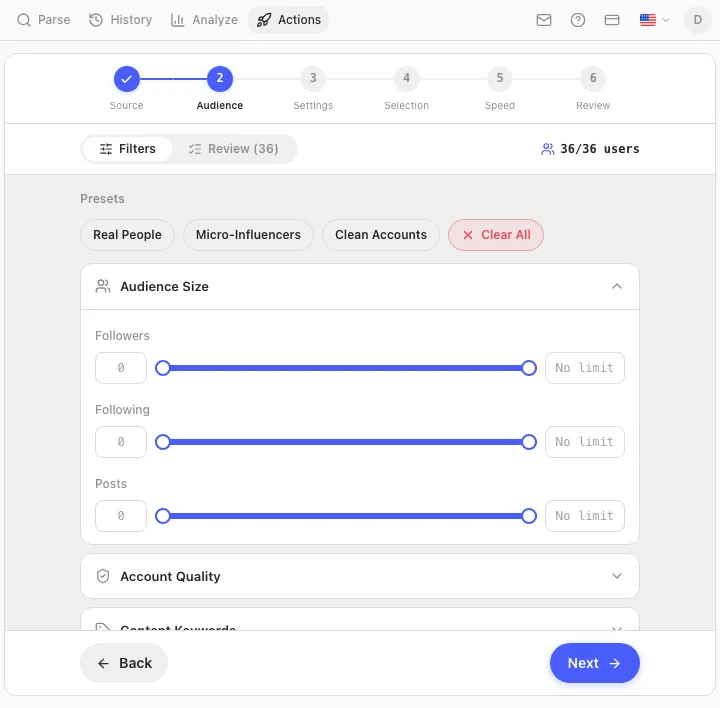
Filter the source down to who you actually want to target. You get a live count of how many accounts survive the filters versus the full list, presets for common shapes (Real People, Micro-Influencers, Clean Accounts), and filter groups for audience size, account quality, and bio keywords.
Step 3 — Settings (Like & Comment only)
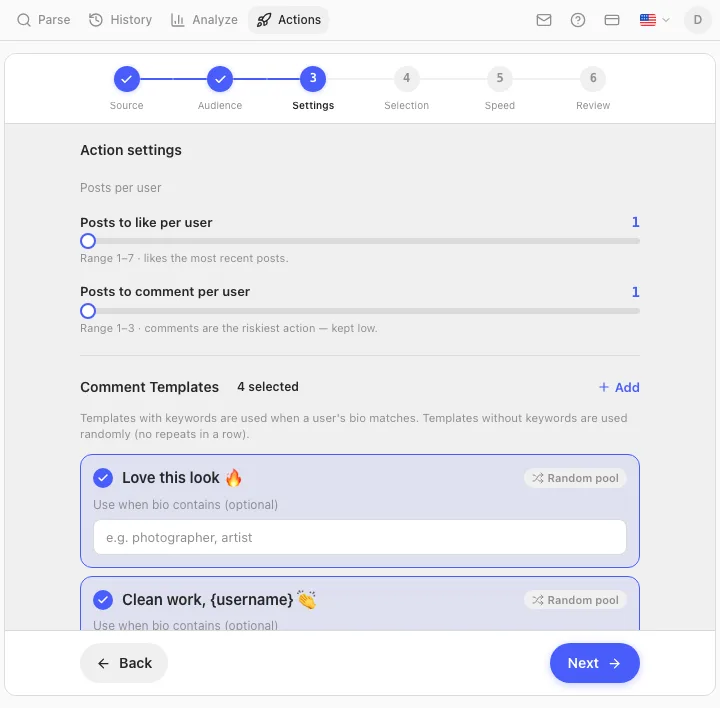
This step only appears when the campaign includes Like or Comment. Here you set how many recent posts to like per user (1–7) and to comment on per user (1–3), and pick which comment templates to use. Templates with keywords are matched against a profile's bio; templates without keywords are drawn from a random pool so you don't repeat the same line back to back.
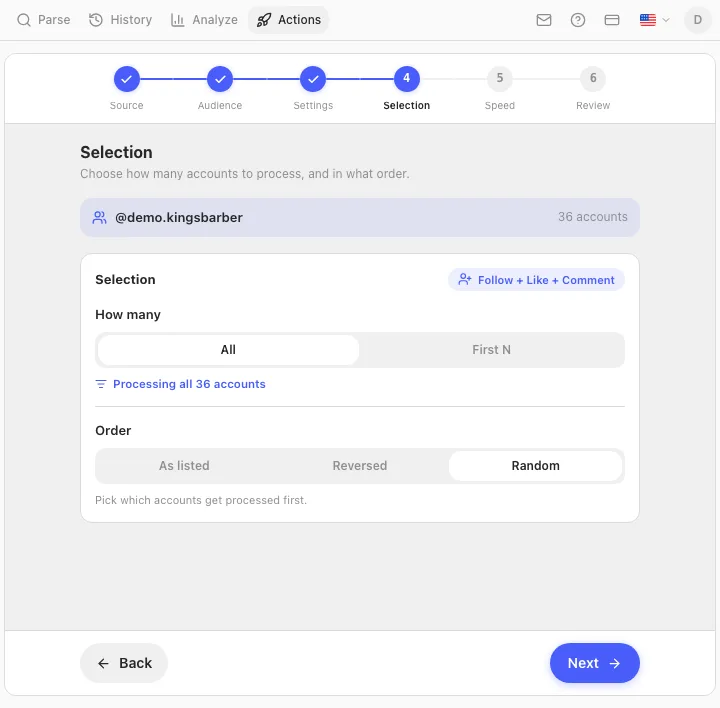
Step 4 — Selection
Decide how many accounts to process and in what order. How many is either All or First N. Order is As listed (Instagram's native order — newest first for followers), Reversed, or Random. "First N" + "As listed" is the precise way to target only the most recent accounts in a list.
Step 5 — Speed & Safety
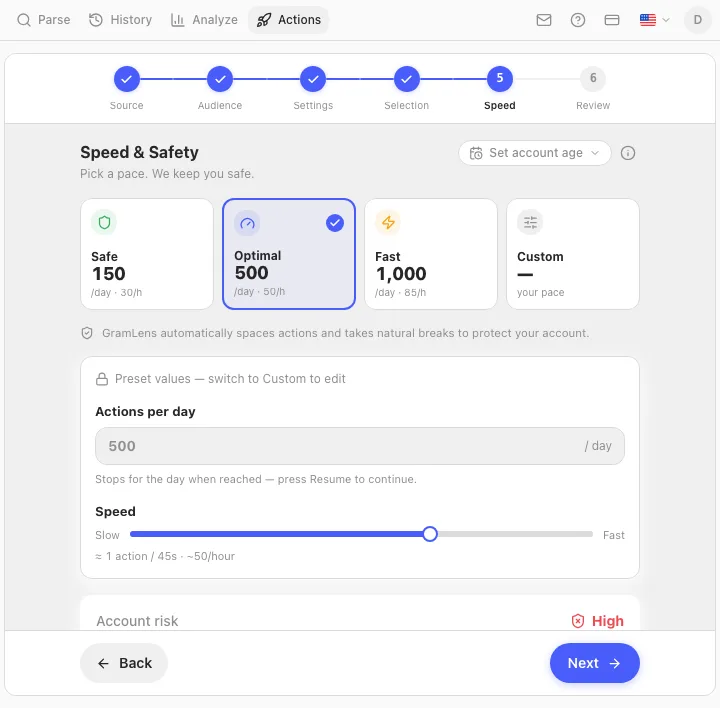
Pick a pace. The three presets set the delay between actions and the hourly/daily caps:
- Safe — ~150 actions/day, ~30/hour (about one action every two minutes).
- Optimal — ~500/day, ~50/hour (about every 45 seconds).
- Fast — ~1,000/day, ~85/hour (about every 30 seconds).
- Custom — set your own actions-per-day and delay.
There's also an account-age selector (younger accounts should run slower) and a live risk meter that turns red when your volume is aggressive for the account.
Step 6 — Review
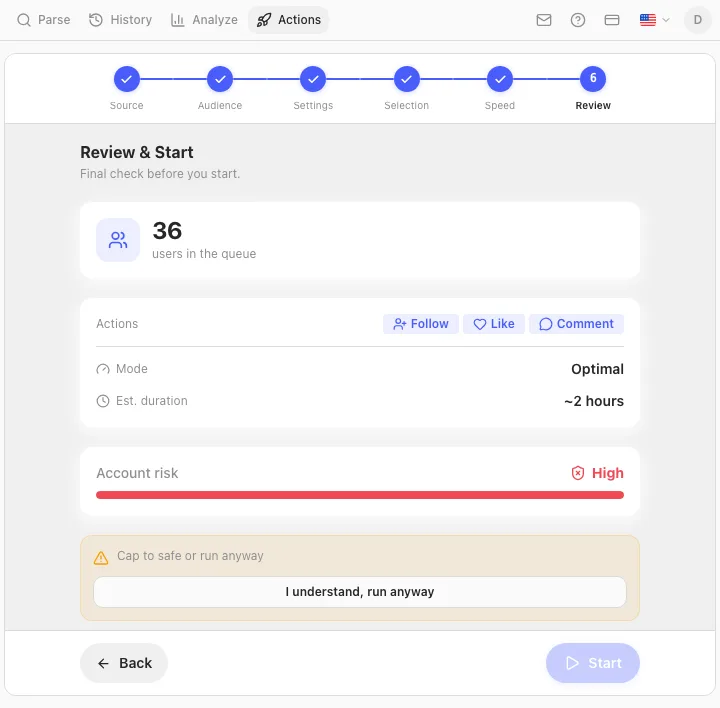
A final summary before anything happens: how many accounts are queued, which actions will run, the mode, and an estimated wall-clock duration. If the risk meter reads High, the Start button is gated behind an explicit "I understand, run anyway" — you can also cap the run back to safe limits here.
What happens while it runs
Once you hit Start, the wizard hands off to a live progress card. You get a percentage, a Done / Failed / Skipped / Remaining breakdown, Pause / Resume / Stop controls, and a scrolling feed of recent actions — each row showing the account, the action, and whether it succeeded, was skipped, or failed.
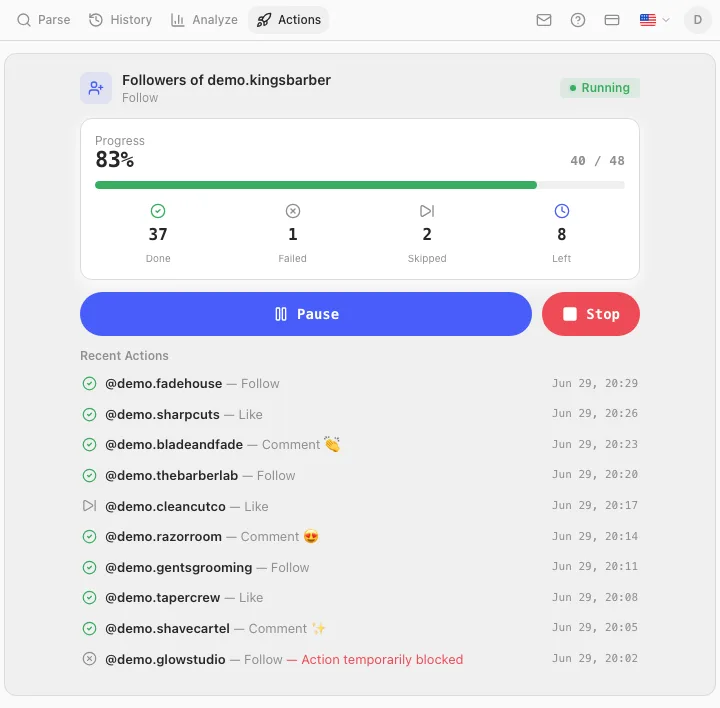
Because the engine runs in the Instagram tab and checkpoints its progress as it goes, a campaign survives closing the sidepanel and even restarting Chrome — reopen Gramlens and it picks up where it left off rather than starting over. You're not meant to babysit it. The cleanest way to run one is the dedicated-window setup from the best way to use Gramlens: pull Instagram into its own Chrome window, dock the sidepanel, start the job, and go back to your real work.
The safety engine, honestly
Actions is deliberately slow, and that's the most valuable thing about it. Instagram aggressively rate-limits write actions, and a tool that fired off hundreds of follows in a minute would get your account action-blocked fast. So the engine does a stack of things to stay under the radar — none of which you can turn off:
- Randomized delays. Every gap between actions is jittered by up to ±40%, so the timing never looks mechanical.
- Micro-breaks. After every handful of actions it pauses for a couple of minutes, like a person putting their phone down.
- Longer batch breaks. After a few dozen actions it takes a 15–25 minute break to mimic a natural session boundary.
- Hourly and daily caps. The mode you picked sets a ceiling; when the daily cap is hit, the campaign stops for the day and resumes tomorrow.
- Exponential backoff. If Instagram pushes back (a rate-limit or spam response), the engine waits and retries on an escalating schedule — 5 minutes, then 15, then an hour, then six.
- Hard stop on a challenge. The moment Instagram throws a checkpoint, challenge, or "action blocked" response, the engine stops immediately and tells you. That's the signal to go verify in the app and let things cool down — back off when it triggers.
This is why a big campaign is honestly a multi-hour job, sometimes spanning more than one session. That's the cost of doing it safely.
Filters: free vs Pro
Two things to know about the Audience step. First, the richer filters need data from a Deep Parse — basic follower/following counts come from a normal parse, but account-quality and bio filters only apply to accounts you've deep-parsed. Second, the filters split by tier:
- Audience Size (follower / following / post-count ranges) — available to everyone.
- Account Quality (follow ratio, verified, business, has bio, has avatar) and Content Keywords (bio contains / doesn't contain) — Pro only.
What you can't do (and shouldn't)
Straight talk, because the downside of getting this wrong is your account:
- The Instagram tab is the engine. It has to stay open on instagram.com with a valid session. Navigate that tab away and the campaign pauses — it resumes when you come back, but it can't run on a tab that's left Instagram.
- One campaign per tab. A tab runs a single job at a time.
- Big campaigns take hours, by design. Don't crank Fast or Custom to rush a cleanup — Safe exists for exactly the moments that matter. Pushing the pace is how you earn an action block.
- Automated actions are against Instagram's Terms of Service. That's a plain fact, not a scare tactic. Gramlens lowers the mechanical risk by pacing itself and hard-stopping on warning signals, but it can't change the ToS — you do this at your own discretion.
Free, Plus, Pro: who can run what
This is the part that's easiest to get wrong, so here it is plainly. Free and Plus have identical Actions power: Follow and/or Like, on Safe mode only, with the Audience-Size filters. Plus removes Gramlens's data limits (unlimited parsing and Deep Parse) but adds no extra automation.
Everything else is Pro ($20/mo): Comment, Unfollow, Remove Followers, the Optimal / Fast / Custom speed modes, keyword targeting, and the Account-Quality / Content-Keyword filters. So a free user can try a slow follow-or-like campaign to see how it feels; a Pro user gets the full toolkit and the faster pacing.
FAQ
Is this safe for my account?
Safer than doing it fast by hand, but nothing on Instagram is risk-free. The engine paces every action, randomizes timing, takes breaks, and stops the instant Instagram pushes back. The single biggest thing you can do is stay on Safe mode and not rush.
Will it get me banned?
Used carefully — Safe mode, reasonable volumes, an account that isn't brand new — the mechanical risk is low, and the hard-stop protects you from blowing past a warning. But automation is against Instagram's Terms of Service, so the honest answer is that there's always some risk and it's yours to weigh.
Can I do it on Free or Plus?
Partly. Free and Plus can run Follow and/or Like on Safe mode with the basic Audience-Size filters. Comment, Unfollow, Remove Followers, the faster modes, and the advanced filters are Pro. Plus does not unlock any extra Actions power — it only lifts data limits.
Does it keep running if I close the sidepanel?
Yes. The campaign runs in the Instagram tab and checkpoints its progress, so closing the sidepanel — or even restarting Chrome — doesn't lose it. Reopen Gramlens and it resumes from where it stopped. Just don't close or navigate the Instagram tab itself.
What happens if Instagram blocks an action?
The engine treats a soft rate-limit by backing off and retrying on an escalating schedule. A hard signal — a checkpoint or "action blocked" — stops the campaign immediately and surfaces the reason. When that happens, open Instagram normally, clear the prompt, and give the account a rest before resuming.
How long does a big campaign take?
Plan in hours, not minutes. On Safe mode you're looking at the low hundreds of actions per day; a few thousand accounts is a multi-session job. That's intentional — the pace is the safety feature.
Can I run two campaigns at once?
Not in the same tab — it's one job per tab. The supported pattern is a single campaign per Instagram tab, run in its own window so it can work in the background.
TL;DR. Actions automates Instagram from a list you've already parsed: pick a Source, filter the Audience, set Settings (for Like/Comment), choose your Selection and Speed & Safety, then Review and start. It runs inside your Instagram tab, paces itself hard to protect your account, and resumes after a sidepanel close or Chrome restart. Free and Plus get Follow + Like on Safe mode only; Comment, Unfollow, Remove Followers, the faster modes and advanced filters are Pro ($20/mo). Keep the Instagram tab open, stay on Safe when it matters, and back off the moment Instagram throws a challenge.