
How to Export Your Instagram Following List to CSV, Excel or JSON
Export the full list of accounts you — or any public profile — follow on Instagram to CSV, Excel or JSON: find who doesn't follow back, back up your list, and clean up before the 7,500 cap.
Instagram will happily show you the list of accounts you follow — one avatar at a time, in an order it picks for you, with no search by date, no sorting, and no export button. The moment you want to actually do something with that list — find who doesn't follow you back, see what's eating your follow allowance, or keep a dated copy before a big cleanup — you need it in a file, not in a feed.
This guide shows how to export an Instagram following list to CSV, Excel, or JSON using a Chrome extension that reads what's already in your browser. It works on your own account or any public profile, takes a few minutes, and never asks for your password.
Followers vs following: which list do you need?
Every Instagram profile carries two different lists, and export tools treat them separately:
- Followers — the people who follow an account.
- Following — the accounts that profile follows.
This guide is about the second one: the outbound list, the one you control by tapping Follow. If it's the follower list you're after — audience analysis, giveaways, lead generation — that's a separate walkthrough: how to export Instagram followers to CSV. Same tool, one switch flipped the other way.
One rule applies equally to both: everything you can legitimately see in your browser, you can export. Anything privacy-locked against your Instagram session stays locked, regardless of the tool.
Step-by-step: export your following list (CSV, Excel, or JSON)
The walkthrough uses the Gramlens Chrome extension. The Free plan covers up to 500 items a month without a credit card, and the extension never asks for your Instagram password — it reads the page through your own logged-in session. Install it, pin it to the toolbar, and the whole export takes six short steps.
1. Open the profile — the side panel appears
Go to instagram.com and open the profile whose following list you want — your own account or any public profile. You need to be on the profile page itself (instagram.com/username), not the Home feed.
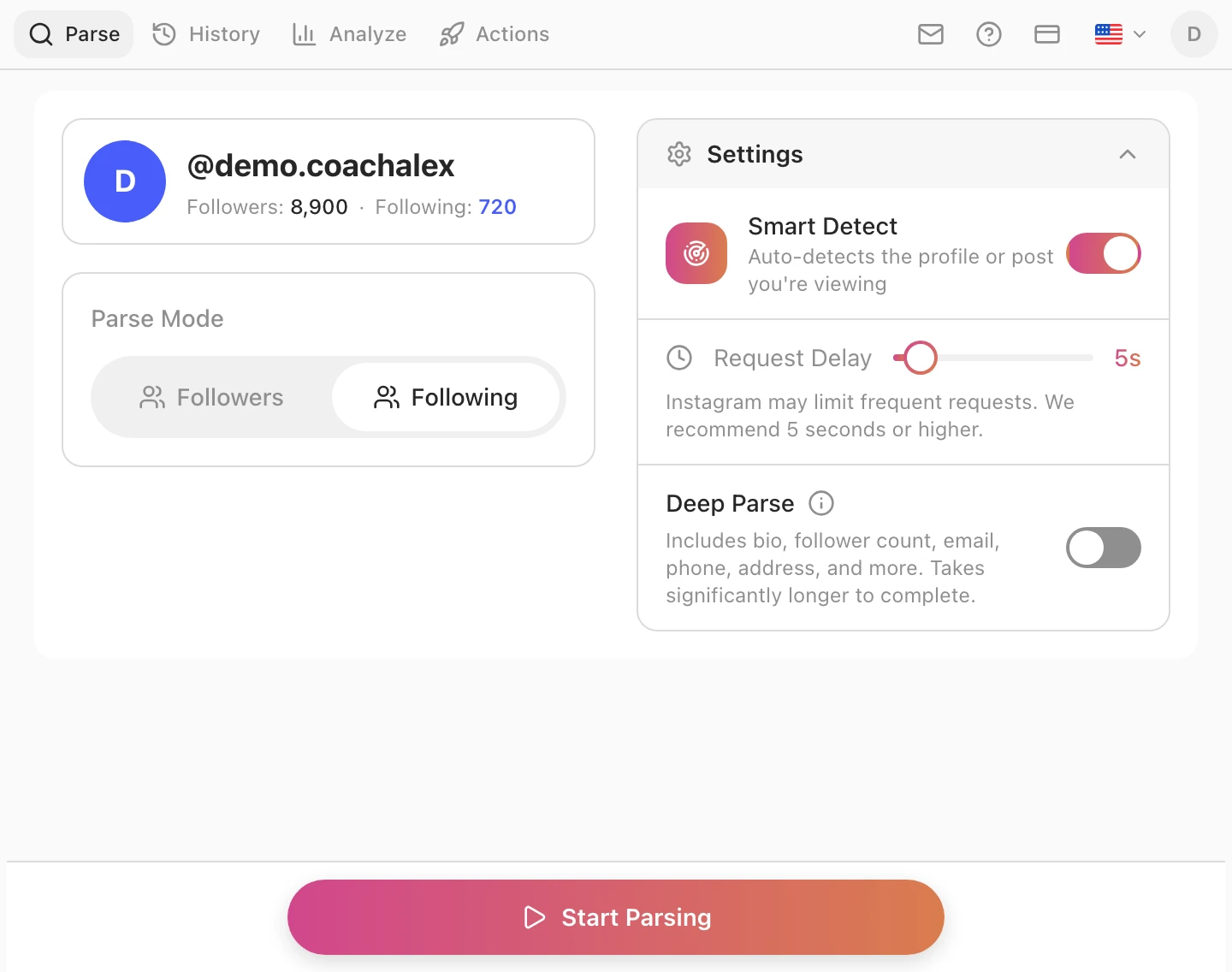
Click the pinned Gramlens icon in the Chrome toolbar. The side panel opens on the right, detects the profile automatically, and shows the account summary with both counts — followers and following — plus the parse options and a Start Parsing button.
2. Switch Parse Mode to Following
Under Parse Mode, click Following. That single click is the whole difference from a follower export — the highlighted number in the profile summary switches to the following count, so you can confirm what you're about to collect before starting.

3. Start the export and watch it run
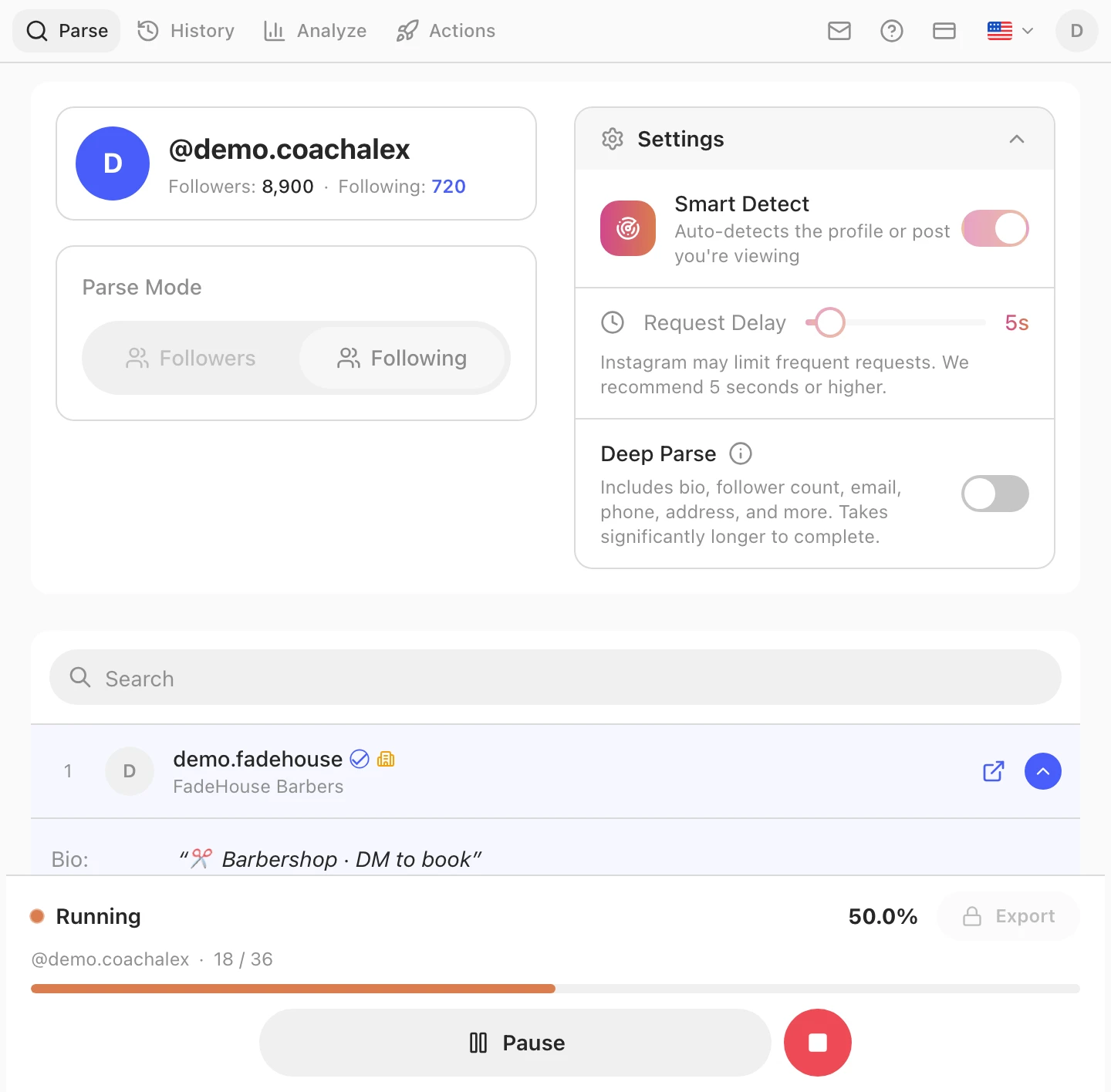
Click Start Parsing. Gramlens pages through the following list at a conservative, rate-limit-friendly pace (the Request Delay in Settings, 5 seconds by default), building the list in memory. A progress card shows the percentage and a live collected / total count; Pause and Stop sit at the bottom, and the Export button stays locked until the run finishes.
Keep the Instagram tab open on instagram.com while it works. A typical personal following list — a few hundred to a couple of thousand accounts — finishes in minutes; you can minimise Chrome, just don't close it or let the laptop sleep.
4. Pick your columns
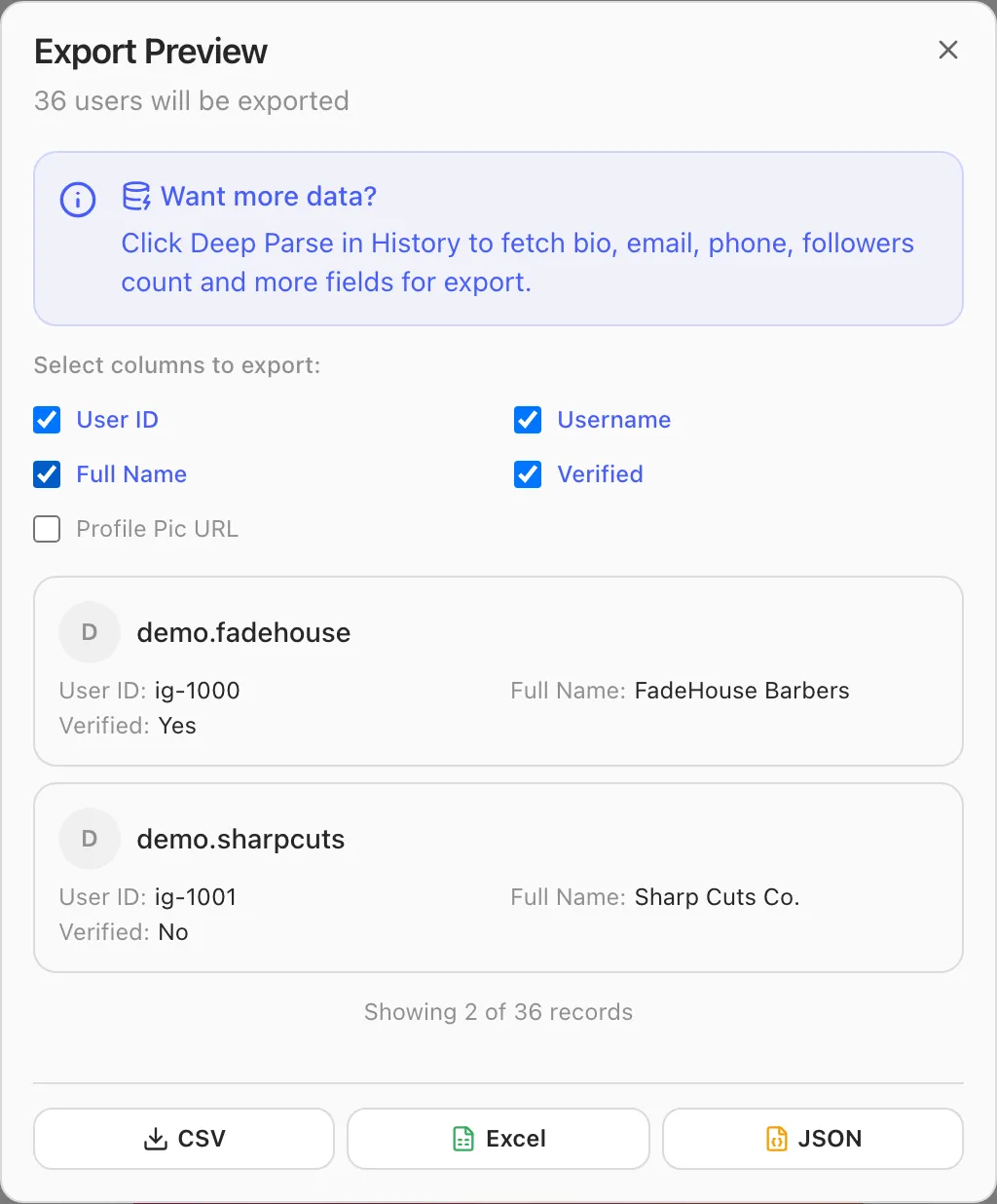
When the run finishes, click Export to open the preview. Tick the columns you want — and whatever else you pick, tick User ID. That's the numeric Instagram ID, and unlike usernames it never changes. Every useful thing you'll do with a following export later — diffing it against your follower list, comparing two snapshots taken weeks apart, de-duplicating across accounts — joins rows on that ID.
5. Download as CSV, Excel, or JSON
At the bottom of the same dialog, click CSV — or Excel (.xlsx) or JSON if you prefer. The file lands in your browser's Downloads folder. Same rows either way; CSV opens anywhere, Excel keeps formatting, JSON suits scripts.

6. Open the file in a spreadsheet
Double-click the downloaded file and it opens in Google Sheets, Excel, or Numbers. Column order is stable across exports, which matters more here than it first seems: put the date in the file name (following-2026-07-05.csv), and every export becomes a snapshot you can compare against later. Dated snapshots are what turn a one-off download into an audit trail.
What fields you get
A standard following export includes an identity row per account:
| Column | What it contains |
|---|---|
| Username | The @handle |
| Full name | The display name on the profile |
| Profile URL | Direct link to the account |
| User ID | Instagram's numeric ID — survives username changes |
| Verified | Whether the account has a verification badge |
| Private | Whether the account is private |
| Profile picture URL | Link to the current avatar |
The one worth repeating: User ID. Usernames get changed and recycled; the numeric ID doesn't. If you ever plan to compare this export against anything — your follower list, an older snapshot, a CRM — it's the column that makes the comparison reliable.
If you need more than identity columns — public email, phone, website, business category — Deep Parse is the enrichment step that visits each profile and extracts the public emails and contacts people put on their business profiles. It's available on the Free plan for up to 500 records and unlimited on Plus; the workflow is the same, you just flip a toggle before running. It's slower than a basic export, so save it for lists you actually intend to work through.
What people do with a following export
Three jobs come up again and again, and all three start with the same CSV:
- The unfollow audit — who doesn't follow you back. Export your following list, export your follower list, and join them on User ID in a spreadsheet (
VLOOKUPorCOUNTIFboth work). Every row in the following export without a match is an account that doesn't follow you back. If you'd rather not run the diff by hand, the extension does the same cross-reference in one view — how to see who doesn't follow you back walks through it — and see who unfollowed you on Instagram covers the version that tracks changes over time. - Cleanup before the 7,500 cap. Instagram's one hard limit is the total size of your following list: 7,500 accounts, for everyone — the numbers are in Instagram follow limits. If you're anywhere near it, the export shows you exactly who's occupying those slots. Sort by name, scan for accounts you don't recognise, and the prune list writes itself.
- A backup before any mass unfollow. Before any bulk unfollow session, export first. A dated CSV of who you followed is the undo button Instagram doesn't give you — if you cut too deep, the file is the only record of what you cut. When you're ready to run the cleanup itself, there's a separate guide to mass unfollowing on Instagram safely.
Limits and safety
The short version: the Free plan exports up to 500 items a month, which covers a typical personal following list in one pass; Plus ($5.99/mo) removes the data caps. Since Instagram itself caps any following list at 7,500 accounts, even the largest single export stays well within reach.
Safety-wise, a following export has the same profile as a follower export: it runs in your own browser session at a rate-limited pace, and the data never leaves your device. The full four-point safety rundown — pacing, sessions, passwords, data locality — is in the followers export guide, and it applies here unchanged. One extra caution specific to this list: if the export is preparation for unfollowing, pace the unfollowing itself — unfollowing too fast trips the same rate limits as following too fast, and Instagram follow limits has the safe numbers by account age.
Frequently asked questions
Can I export the following list of someone else's account?
Yes — any public profile: open it, switch Parse Mode to Following, run the export. For private accounts it works only if you follow them, meaning Instagram would already show you the list in the app. The exporter never bypasses privacy controls; it can only read what your own session can see.
How do I find who doesn't follow me back?
Export two lists from your own profile — following and followers — and join them on User ID in a spreadsheet. Rows from the following export with no match in the follower export are accounts that don't follow you back. The extension has a view that does the same join for you, covered in how to see who doesn't follow you back on Instagram; if you want changes over time rather than a snapshot, tracking who unfollowed you is the other half.
How many accounts can I export?
The Free plan covers 500 items per month; Plus is unlimited. Instagram itself caps a following list at 7,500 accounts, so unlike follower exports — which can run into the hundreds of thousands — a single following export is always bounded.
Will people know I exported my following list?
No. The export is read-only: it doesn't visit, like, follow, or notify anyone on the list. Instagram sends no notification for someone's list being viewed — and that's all an export does, at a measured pace.
Do I have to give the extension my Instagram password?
Never. Gramlens runs inside your browser and reads Instagram through the session you're already logged into. Any tool that asks you to type your Instagram password into it is a tool to walk away from.
What formats can I download?
CSV, Excel (.xlsx), and JSON — the same rows and columns in each. CSV is the universal choice for spreadsheets, Excel preserves types and formatting, JSON is convenient if a script consumes the file next.
Why doesn't the exported count match the number on my profile?
Small mismatches are normal. Instagram's on-profile counters are rounded and cached, and they can include deactivated or deleted accounts that no longer appear when the list is actually read. The export reflects what the list actually returns today; the counter reflects what Instagram last remembered.
If you want the shortest possible summary of this article: install Gramlens, open the profile, switch Parse Mode to Following, click Export, download the CSV. The rest is what to do with the list once you have it.
Explore the feature