
How to See Who Unfollowed You on Instagram (No Sketchy Apps)
Instagram won't tell you who unfollowed you — and most apps that promise to want your password. Here's how to track unfollowers passively in your own browser, without handing your login to anyone.
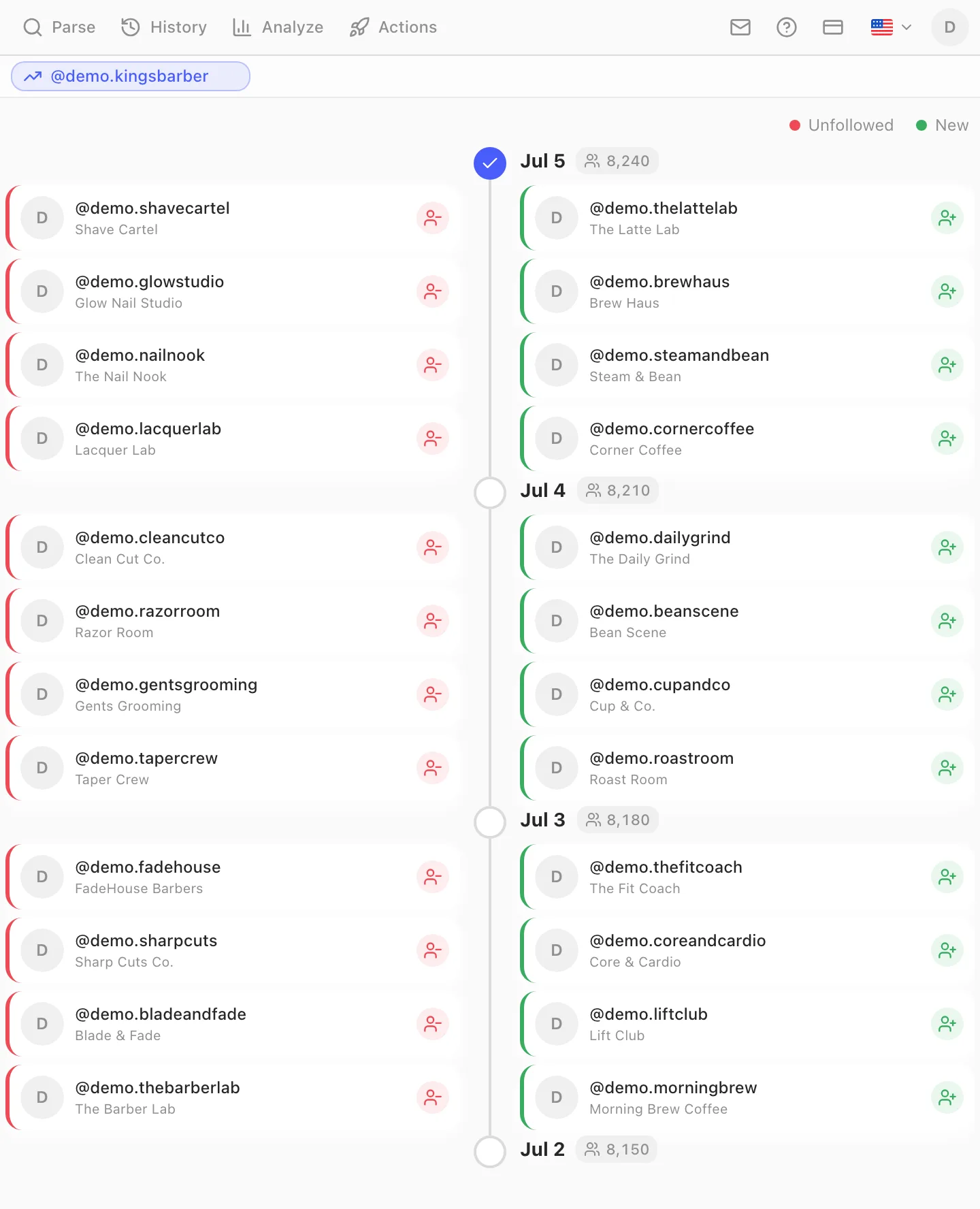
Your follower count said 8,240 yesterday. Today it says 8,210. Instagram is perfectly happy to show you the number going down — it just won't tell you who left, and it never will. That gap created an entire industry of "unfollowers" apps, and most of them share one ugly trait: they ask you to hand over your Instagram username and password before they'll tell you anything.
You don't need to do that. This guide covers the two ways to see who unfollowed you that don't involve giving your login to a stranger's server: a free manual method with two exports and a spreadsheet, and a Chrome extension that does the same diff automatically in your own browser. It also explains — concretely — why the login-based apps are a bad trade, so you can judge for yourself.
Why Instagram won't tell you who unfollowed you
Instagram notifies you about gains: new followers, likes, mentions. Losses are silent by design. An "X unfollowed you" notification would generate drama, retaliation unfollows, and anxiety — all things that make people close the app. There is also no official API for it: Instagram's Graph API gives business accounts aggregate follower counts at best, never a list of who left. Don't expect this to change; it's a product decision, not a missing feature.
That has one practical consequence worth understanding before you install anything: every "who unfollowed me" tool on the market works the same way — it saves snapshots of your follower list over time and compares them. There is no secret unfollow feed to tap into. (If what you actually want is the accounts that never followed you back, that's a different and much faster question — it needs no history at all, and it's covered in how to see who doesn't follow you back.) The only real difference between tools is where that snapshotting runs: on a third-party server that logs into your account with your password, or in your own browser, inside the session you already have open.
That difference is the whole story of this article.
The manual way: two exports and a spreadsheet diff
The zero-trust, zero-cost version. It works with any exporter, takes about ten minutes per check, and is a good fit if you only care about a monthly audit.
- Export your followers to CSV today. The full walkthrough is in how to export Instagram followers to CSV — install the extension, open your profile, parse, download. Name the file with the date:
followers-2026-07-05.csv. - Wait. A week or a month — whatever cadence you care about.
- Export again and put both lists side by side in one spreadsheet: old list in column A, new list in column B.
- Flag the leavers. In column C next to the old list:
=IF(COUNTIF(B:B, A2)=0, "unfollowed", ""). Every username marked "unfollowed" was there before and isn't now. The reverse formula on column B gives you the new followers.
This genuinely works, and for a one-off answer ("who left after my pricing post?") it's all you need. The honest downsides: it depends entirely on your discipline — no export that day, no data for that day — and every check is a manual chore. If you got here by searching "who unfollowed me" for the second time this month, automate it.
Automatic tracking with a Chrome extension: step by step
The Gramlens Chrome extension automates exactly the workflow above — snapshots plus diff — inside your own browser. You never type your Instagram password anywhere except instagram.com, and the Free plan (up to 500 parsed records a month, no credit card) covers tracking for a small account. This walkthrough assumes the extension is installed and pinned; that part takes about ten seconds.
1. Parse your followers — that's your first snapshot
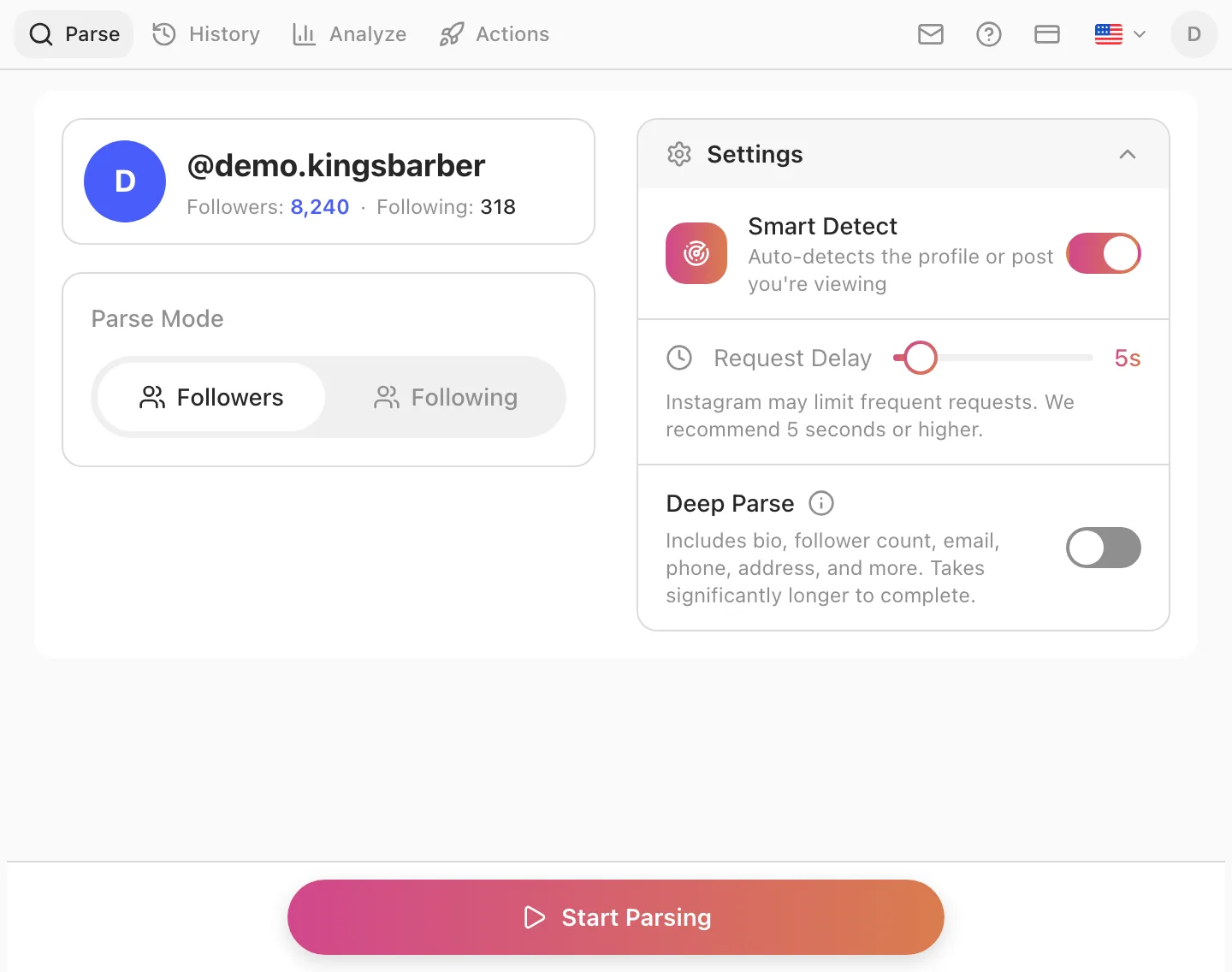
Go to instagram.com and open your own profile page (instagram.com/yourusername), then click the Gramlens icon in the toolbar. The side panel opens and detects the profile automatically — you'll see the handle, the follower and following counts, and a Start Parsing button. Leave Followers selected under Parse Mode and start the run. For an account with a few thousand followers it finishes in a couple of minutes; keep the tab open while it works.
2. Repeat it — snapshots pile up in History
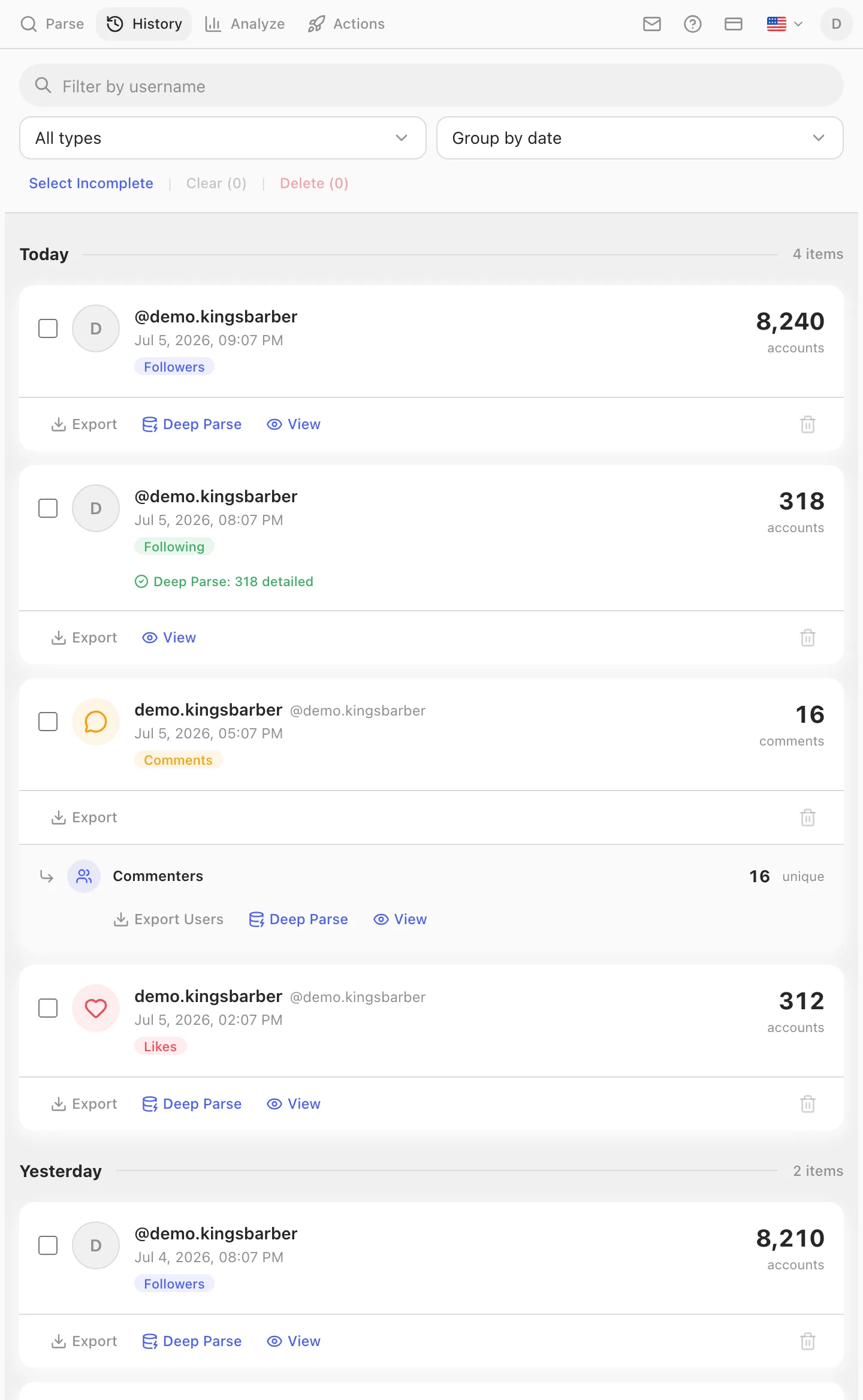
Every finished parse is saved to the History tab as a snapshot with a date and a follower count. That's the raw material for unfollower tracking: parse again tomorrow, or next Monday, and you have two points to compare; keep the habit and you have a running history. Each check is one click on a page you were probably visiting anyway — but to be clear about how it works, the extension only takes a snapshot when you run a parse. There's no background job that does it for you while Chrome is closed; if a dip in the graph matters to you, the parse has to actually happen. If you live in the sidepanel anyway, the dedicated-window setup makes the routine nearly frictionless.
3. Open Analyze → Timeline
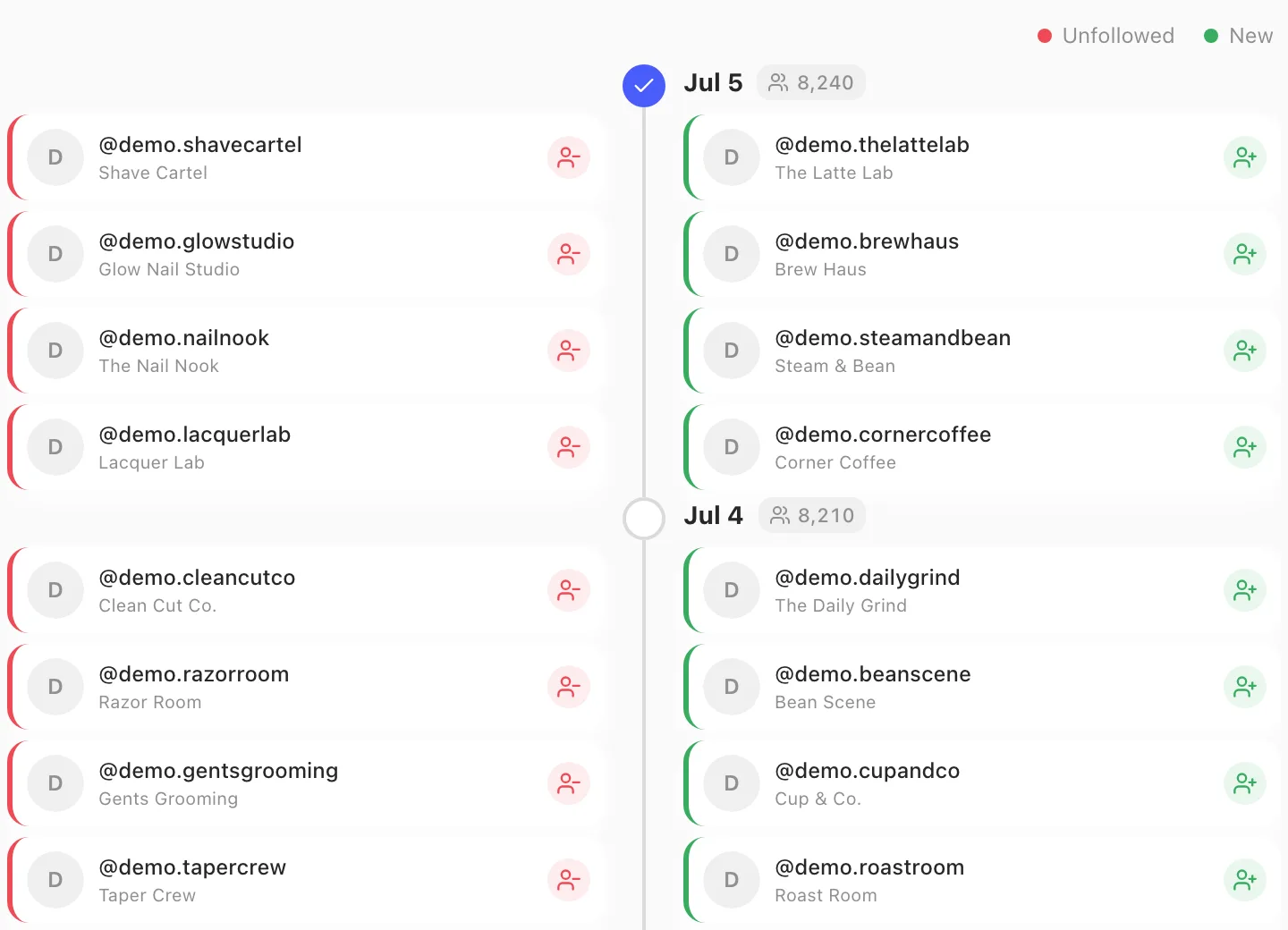
Once at least two follower snapshots exist, open the Analyze tab and add your account with the Timeline view. Timeline loads every follower snapshot Gramlens has saved for that account, lines them up by date, and diffs each day against the previous one — you don't compare anything by hand.
4. Read the diff: red is who unfollowed you
The legend is the whole interface: "Unfollowed" accounts appear in red on the left of each date, "New" followers in green on the right, with the follower count pinned to every snapshot. Click through to any profile directly from the card. That screenshot-worthy question — who unfollowed me on Instagram? — is answered by the red column, per day, with names and avatars.
Two honest limitations before you build a workflow on this. First, tracking starts at your first snapshot — no tool can show you who unfollowed you last month if nothing was recorded last month, so install and take the baseline before you need it. Second, this is a desktop Chrome extension: parses run in an open browser, and there's no mobile app. If you need a tracker that works entirely from your phone, a browser extension isn't it — though it's exactly the phone-first apps where the password problem below lives.
Why login-based unfollower apps are dangerous
Search "unfollowers" in any app store and you'll find dozens of apps with the same onboarding: enter your Instagram username and password, and we'll show you who unfollowed you. It sounds harmless. Here's what actually happens.
- You've given away full account control, not "read access." With your credentials, the app's server can read your DMs, post, follow, like, comment, and change your email and password. There is no scoped, read-only Instagram login for third parties — it's all or nothing, and you just chose all.
- Instagram treats server-side logins as an attack signal. Your account suddenly logs in from a data-center IP in another country — the exact pattern Instagram's anti-abuse systems are built to catch. Best case is a security challenge and a forced password reset; the common case is temporary action blocks; the worst case, on repeat offenses, is losing the account. Meta has banned whole generations of these apps, which is why they keep reappearing under new names.
- Many of them act on your behalf. The free tier "just tracks," and the paid tier quietly automates follows, unfollows, and comment spam from their servers using your session — activity you never see, billed to your account's reputation.
- Your credentials sit in someone's database. Alongside everyone else's, waiting for the inevitable breach or quiet resale. An Instagram password reused anywhere else makes it strictly worse.
The passive, in-browser approach sidesteps all four points at once: Gramlens never asks for your password and couldn't log in as you if it wanted to. It reads the follower list through the browser session you already have open — the same data Instagram is already showing you — so there's no foreign login, no server acting as you, and nothing to leak that could take over your account. Instagram sees you, on your device, browsing your own followers. That's the entire trick, and it's why the trust question has a clean answer here.
If you want to apply that reasoning to a specific app rather than take it on faith, are Instagram follower tracker apps safe? breaks the category down by architecture and gives you a five-minute audit to run before installing anything — including this.
What to actually do about unfollowers
A tracker is a smoke detector, not a growth strategy. When the red column has names in it, the useful move is diagnosis, not doom-scrolling:
- A slow trickle of unfollows is normal. Every healthy account sheds followers continuously — people prune who they follow, abandon accounts, get deleted. If the New column roughly keeps pace with the Unfollowed column, nothing is wrong.
- Look at who left, not how many. A wave of empty, no-avatar accounts unfollowing is bot churn cleaning itself up — good news, your audience quality just improved. Real, engaged-looking profiles leaving right after a content pivot is an actual signal about the pivot.
- Clean up what the diff exposes. Tracking often surfaces the opposite problem — junk that stayed. If your follower list picked up a wave of bots, the same snapshots drive the cleanup: how to remove bot followers on Instagram walks through diffing a baseline against the attack and bulk-removing exactly the difference.
- If you're pruning who you follow, pace it. The classic response to "they unfollowed me" is a purge of accounts that don't follow back. Do it carefully: unfollowing too fast trips the same rate limits as following too fast — the numbers are in Instagram follow limits. There's a step-by-step guide to a safe bulk unfollow that runs the queue as a paced campaign (Actions) instead of by hand. And before any purge, export your following list first — a dated CSV of who you followed is the only undo you'll get.
Frequently asked questions
Can Instagram itself show me who unfollowed me?
No. Instagram shows the follower count and notifies you about new followers, but there is no unfollow notification, no "recently unfollowed" list, and no API that exposes one — for personal or business accounts. Any tool that answers the question does it by comparing saved snapshots of your follower list over time.
Do I have to give the extension my Instagram password?
No — and this is the line that separates safe tools from sketchy ones. Gramlens runs inside your Chrome, reading the follower list through the Instagram session you're already logged into. Your password is typed on instagram.com and nowhere else. Any unfollower tool that asks you to enter your Instagram credentials into its interface should be an instant no.
Will tracking unfollowers get my account banned?
Tracking is just periodically reading your own follower list, at a deliberately slow pace (Gramlens waits several seconds between requests by default). At the scale of a personal or business account parsed once a day, that's indistinguishable from you scrolling your follower list — which is literally what it is. The ban risk in this niche comes from the other kind of tool: server-side apps logging in with your password from foreign IPs and automating actions behind your back.
How far back can I see who unfollowed me?
Back to your first snapshot, and no further. Nobody's data starts before the tracking does — a tool that claims to show you unfollowers from before you installed it is guessing. Practical advice: take your baseline snapshot now, while nothing is wrong, so the history exists when you actually want it.
Is unfollower tracking free?
On Gramlens, yes within the Free plan's quota: up to 500 parsed records a month, with snapshots, History, and the Timeline diff all included. A 2,000-follower account parsed weekly blows past that, so heavier tracking realistically means Plus at $5.99/month, which removes the parsing caps entirely.
Can I see who unfollowed me on my phone?
Not with a browser extension — Gramlens runs in desktop Chrome, and there's no iOS/Android app. That's an honest limitation of the approach. The mobile apps that fill this gap are overwhelmingly the login-based kind described above, which is a worse trade than waiting until you're at a computer.
Can I track who unfollowed someone else's account?
Yes — the mechanics don't care whose follower list it is, as long as the account is public (or you legitimately follow it). Parse a competitor's followers on the same cadence and Timeline will show their churn the same way: who joined, who left, per day. It's one of the more underrated competitive-research moves.
If you want the shortest possible summary of this article: install Gramlens, parse your followers today, parse them again tomorrow, and open Analyze → Timeline — the red cards are who unfollowed you. No password handed to anyone, no sketchy app logging in as you, and the history only gets more useful the longer you keep it.
Explore the feature