
12 short videos
Install and first run
From an empty toolbar to a panel that has already found your profile — the whole first minute.
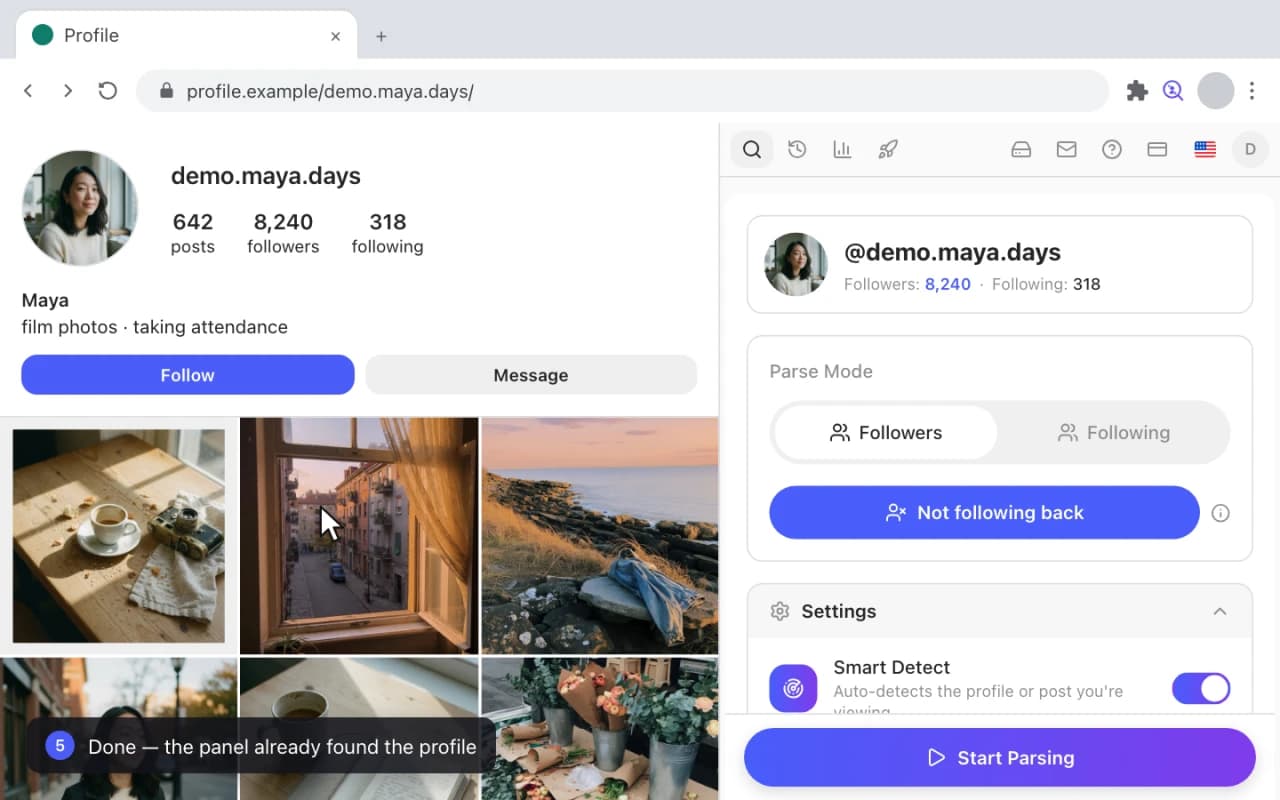
- Click the Gramlens icon in the Chrome toolbar. The side panel opens on the right and a tab with your social profile opens next to it.
- Log in to your social account in that tab, as you normally would. Gramlens never sees the password — it reads the session the tab already has.
- In the panel, click Sign in with Google. The account is what carries your plan and your limits.
- Read the data notice and accept it. It states in one screen what is stored, where, and what never leaves your computer.
- The Parse tab now shows the detected profile: the handle, the follower and following counts, and a Start Parsing button.
Best Way to Use Gramlens: Run Instagram in a Separate Chrome WindowFollower Export
Export followers to CSV or Excel
The core job: a full follower list off a profile and into a spreadsheet, with the columns you pick.
- Open a profile and choose Followers in the panel.
- Click Start Parsing. The progress bar counts up as the list is collected; keep the tab open while it runs.
- Wait for the run to finish — here it lands at 8,240 collected.
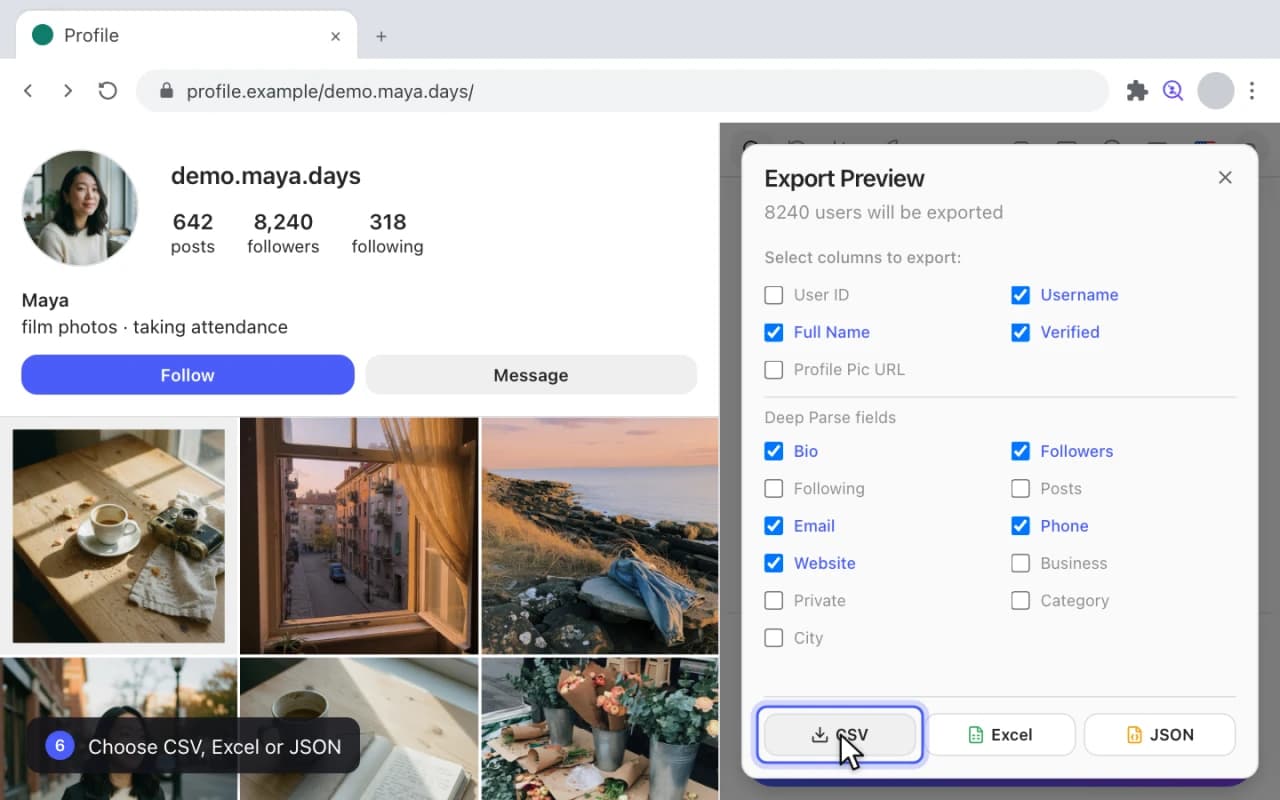
- Click Export and tick the columns you want in the file.
- Pick a format — CSV, Excel or JSON — and the file is saved to your Downloads folder.
How to Export Instagram Followers to CSV in 2026 (Step-by-Step)Follower ExportFollower Export
Pause, resume and stop a parse
A long run is not a hostage situation. Pause it, close the panel, come back tomorrow and pick it up where it stopped.
- While a parse is running, click Pause. The panel tells you that you can close it and the collection keeps going.
- Click Resume and the run continues from the record it stopped on.
- Click Stop to end the run early. The partial result is saved, not discarded.
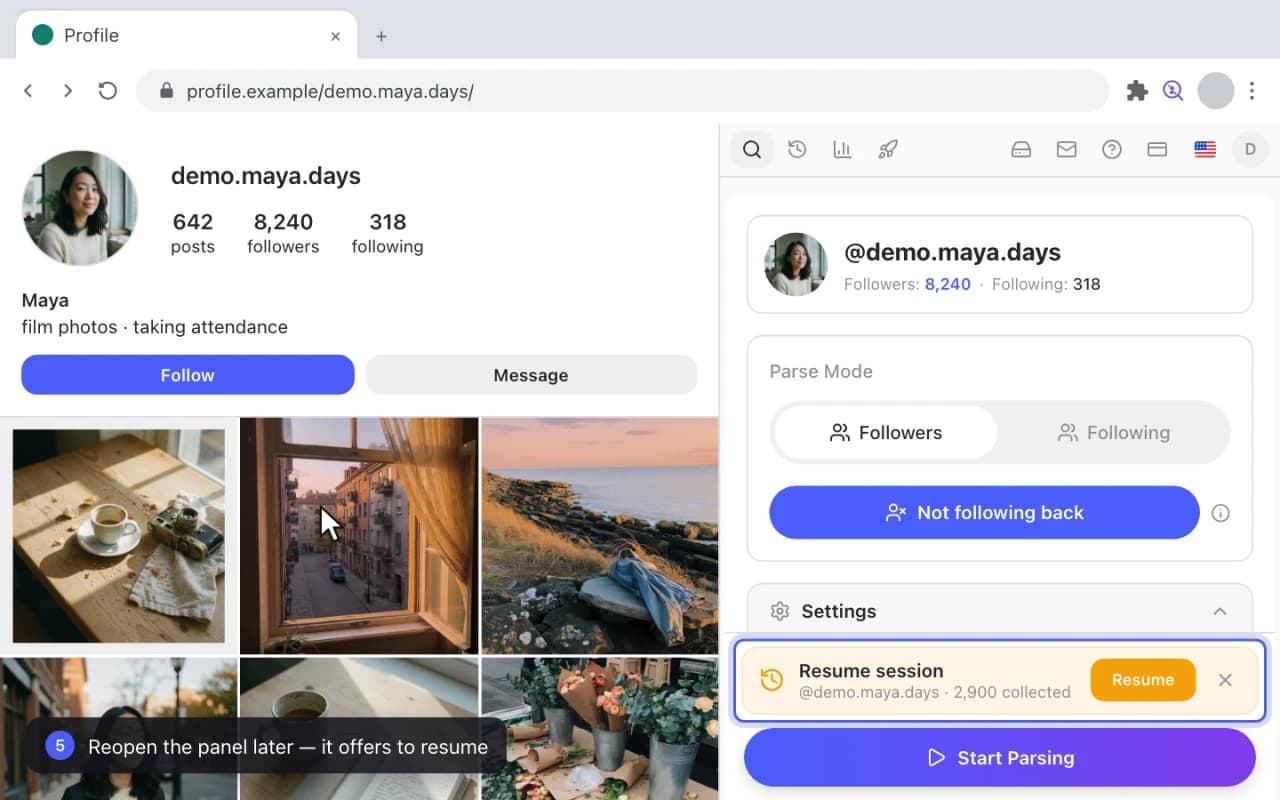
- Reopen the panel later and it offers Resume session with the number already collected.
- Click Resume and the run continues instead of starting over from zero.
How to Export Instagram Followers to CSV in 2026 (Step-by-Step)Follower Export
Deep Parse: emails, bios and phone numbers
A second pass over a list you already have, collecting the public contact details each profile chose to publish.
- Open History and pick a saved list, then choose Deep Scan on it.
- In the confirmation dialog, select the fields to collect and set the request delay. A slower delay is a safer run.
- Click Start. The progress panel shows how many profiles are done and how many of each field have been found so far.
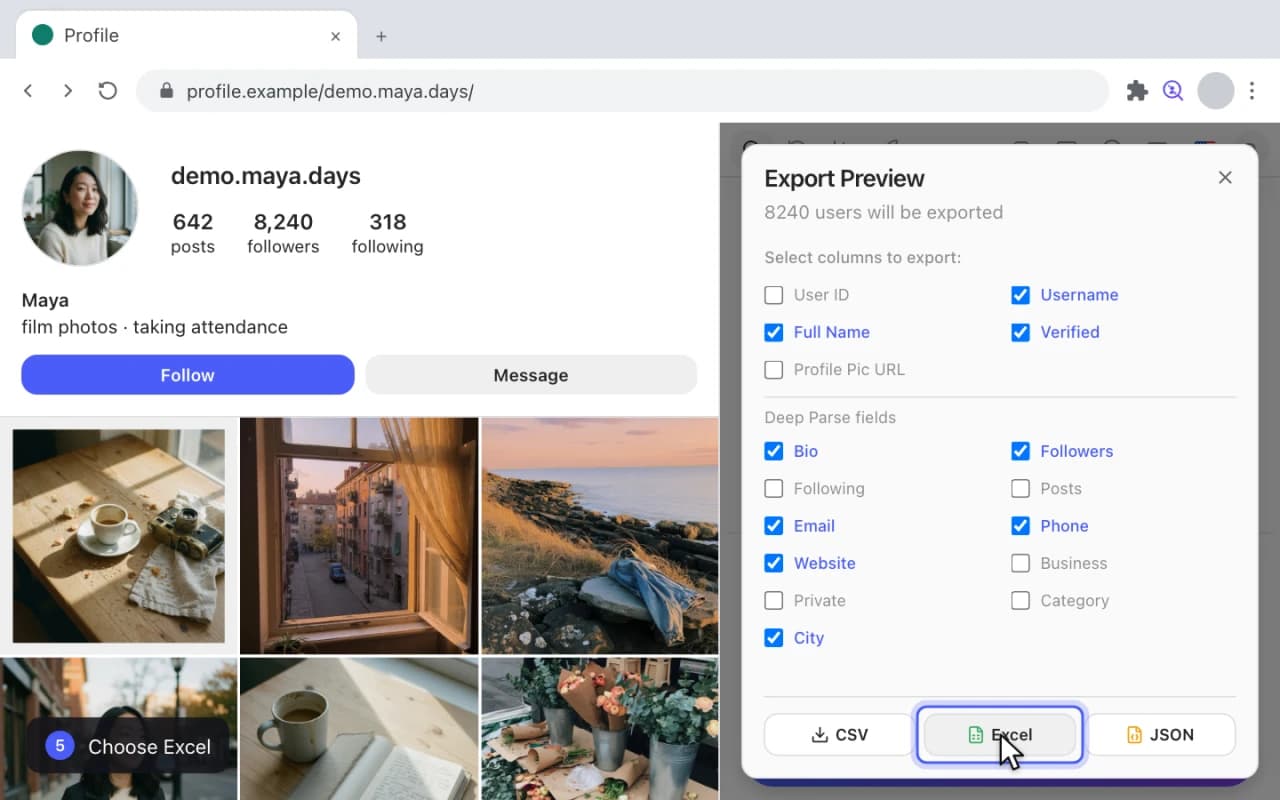
- When it finishes, click Export. The column picker now carries the Deep Parse block — Bio, Followers, Email, Phone, Website and the rest.
- Choose Excel and the enriched list is saved with the new columns filled in wherever the profile published them.
How to Extract Emails and Contacts from Instagram FollowersFollower ExportEmail Extractor
See who doesn't follow you back
Three steps that turn your two lists into one answer: the accounts you follow that never followed you.
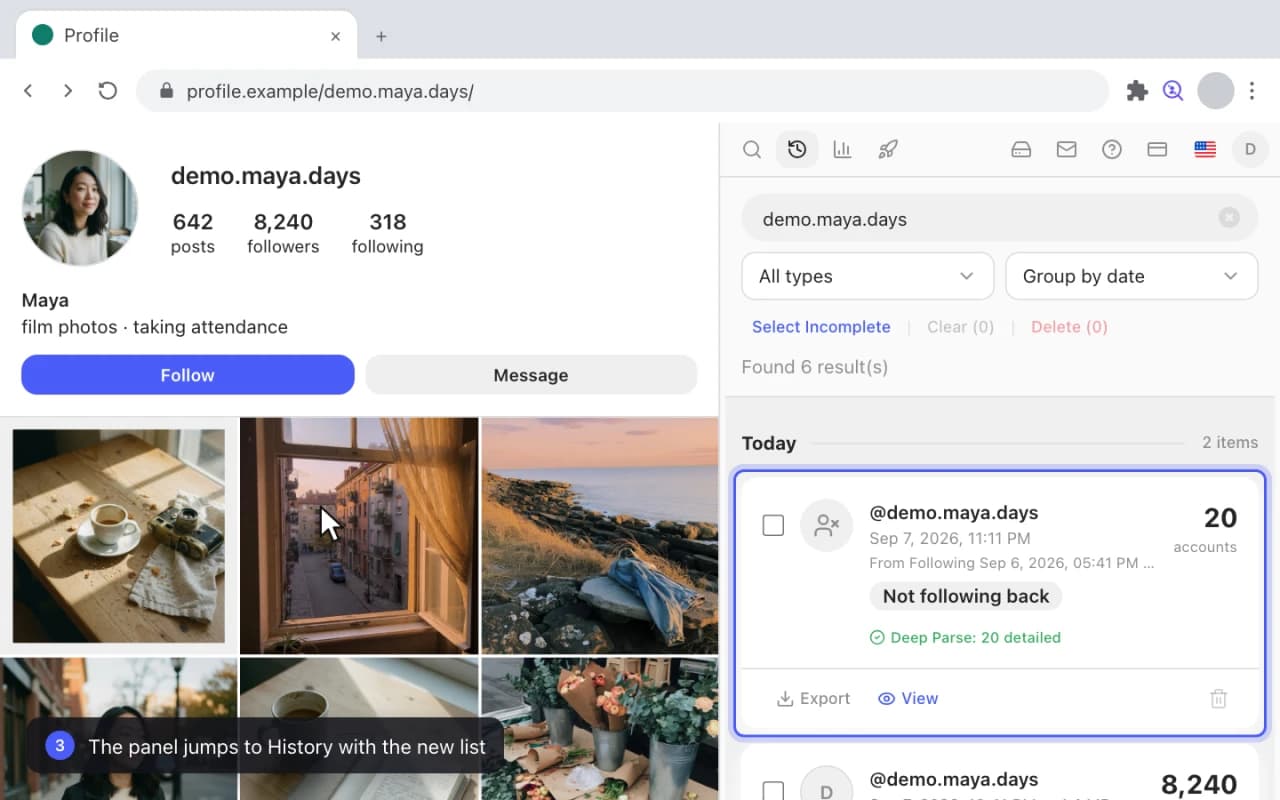
- Open your own profile and click Not following back in the panel.
- Step one parses your Following list.
- Step two parses your Followers list.
- Step three compares them and builds the derived list; the panel jumps to History with it selected.
- Click Export to take the list out as CSV, Excel or JSON.
How to See Who Doesn't Follow You Back on InstagramUnfollowers TrackerNot Following Back
See who unfollowed you
Two snapshots of the same account, subtracted. The timeline names who left and when.
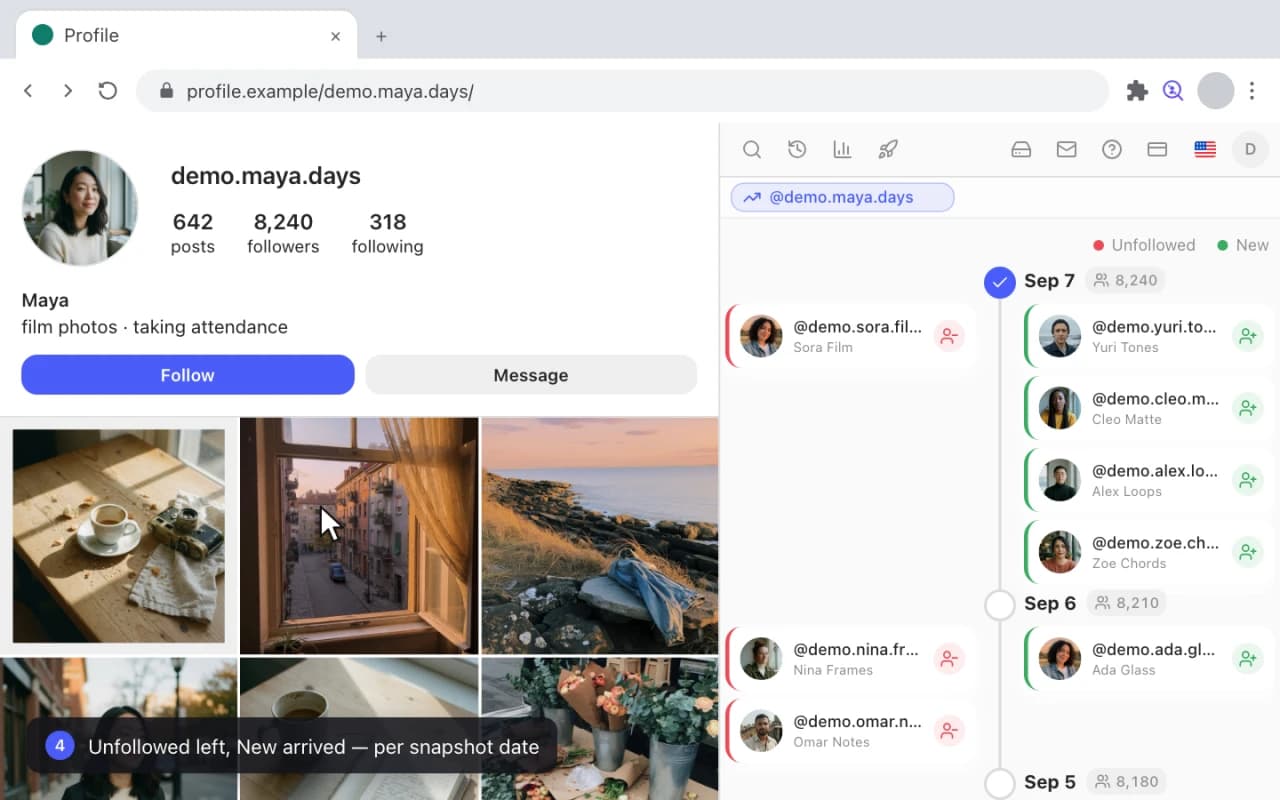
- Open Analyze and click Timeline on the account card.
- Switch between Followers and Following — the timeline covers both lists.
- Choose All snapshots to see every recorded change, or Full only to compare complete runs and skip the partial ones.
- Read the legend: Unfollowed is who left, New is who arrived, per snapshot.
- Click Load more to walk further back through the history.
How to See Who Unfollowed You on Instagram (No Sketchy Apps)Unfollowers Tracker
Compare two accounts
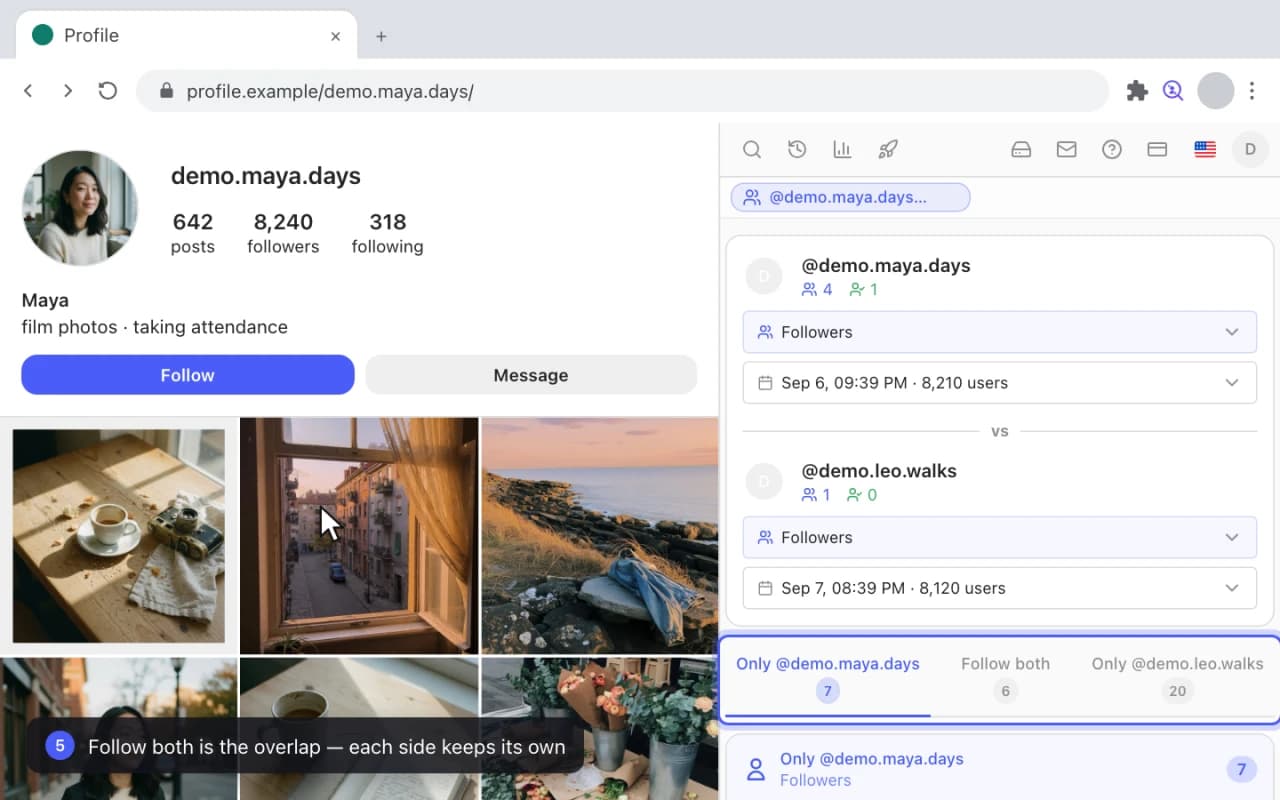
The overlap between two audiences — who follows both, and who is unique to each side.
- In Analyze, click + Compare on the first account card.
- Do the same on the second account.
- Click Compare to open the comparison.
- On each side, pick the list — Followers or Following — and which snapshot to use.
- Read the result: Follow both is the overlap, and each side keeps its own unique audience.
Instagram Competitor Analysis: Compare Two Accounts' Followers Side by SideCompare Accounts
Find, view and clean up your history
Everything you have ever collected, in one list you can filter, search inside and prune.
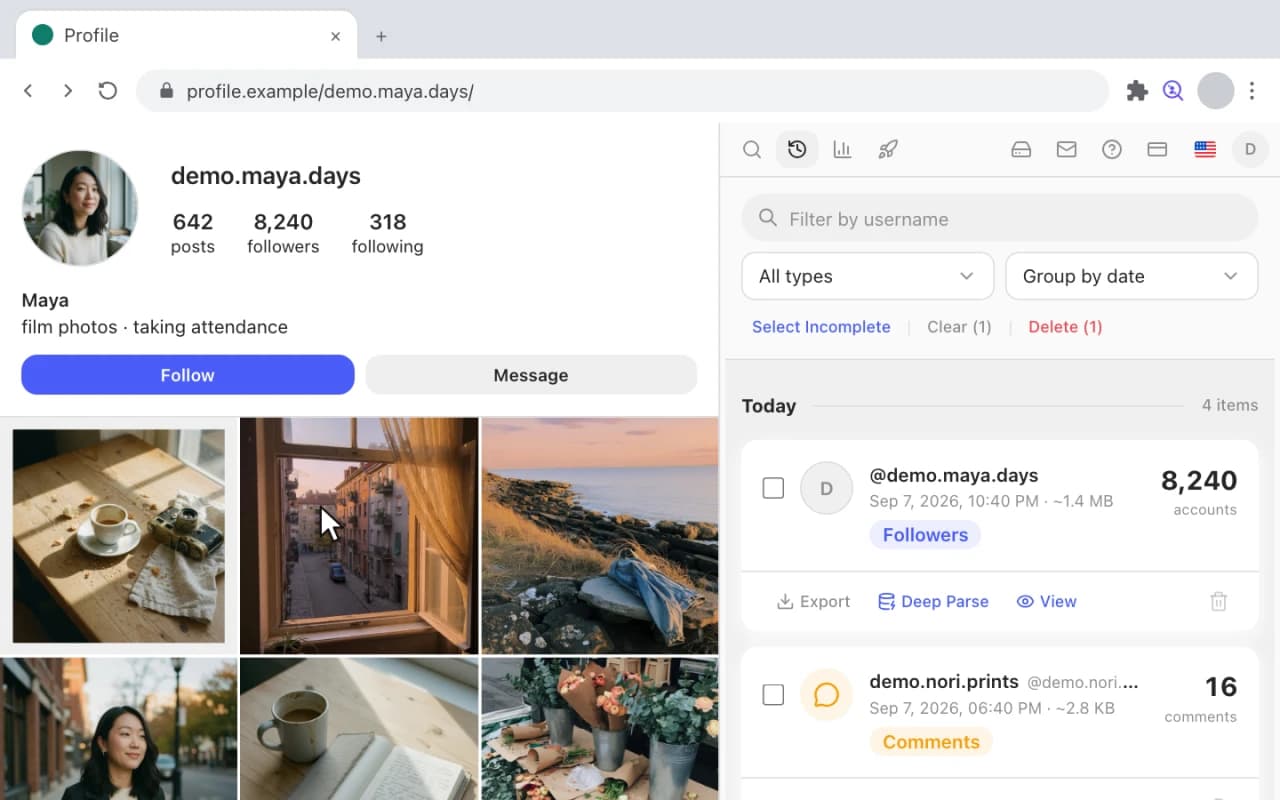
- Open History and filter by username to narrow it to one account.
- Add a type filter — Not following back, for example — to see only the derived lists.
- Group by date to see the runs in the order they happened.
- Click View on a snapshot and search inside it for a specific handle.
- Use Select incomplete and Delete selection to clear out the runs that never finished.
How to See Who Unfollowed You on Instagram (No Sketchy Apps)Unfollowers Tracker
Back up your whole history as a ZIP
One button, one archive, every list you have collected. Run it before a reinstall, not after.
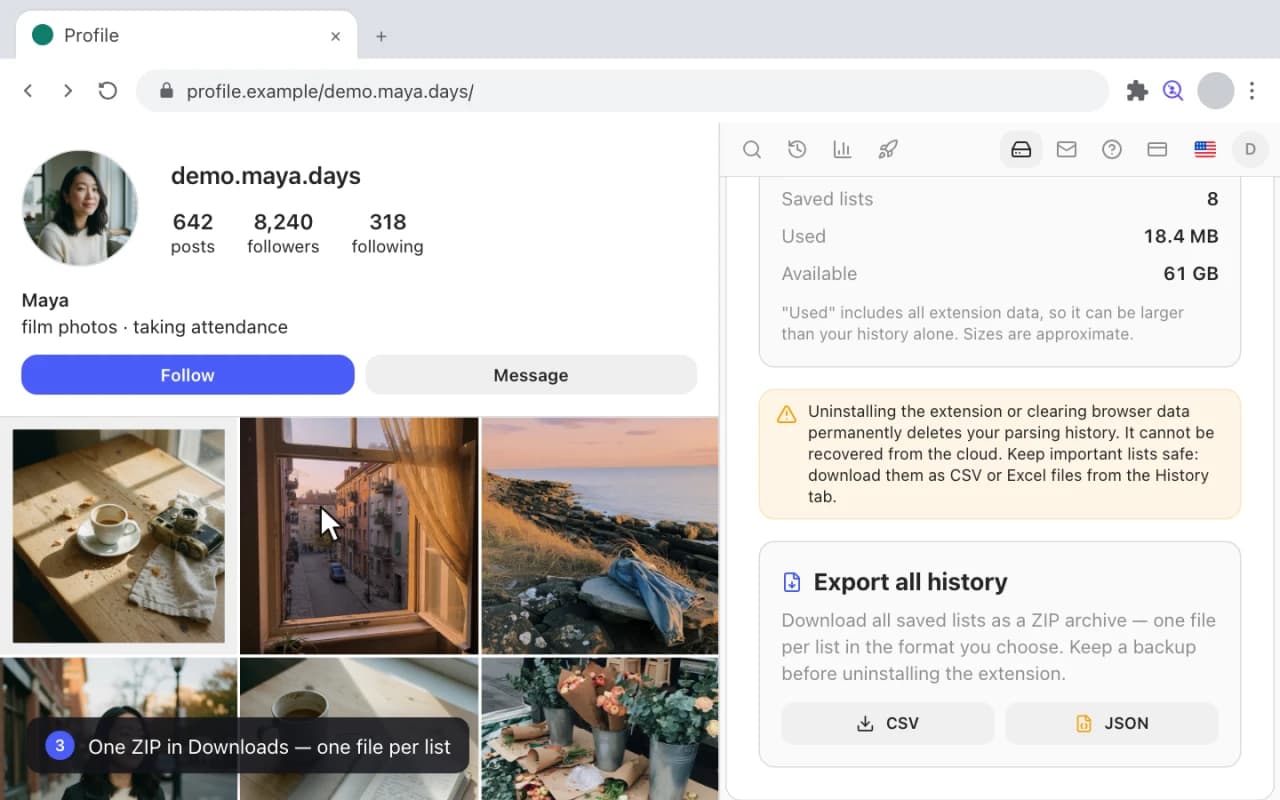
- Open the Storage tab. It shows how much space the history takes and how much is left.
- Click Export all history.
- Choose CSV as the format for the files inside the archive.
- Watch the counter: Preparing n of N as each saved list is written out.
- The result is a single ZIP in your Downloads folder, one file per list.
Best Way to Use Gramlens: Run Instagram in a Separate Chrome Window
Download photos, videos and stories
Original files off a post or a story, straight into your Downloads folder — nothing to paste anywhere.
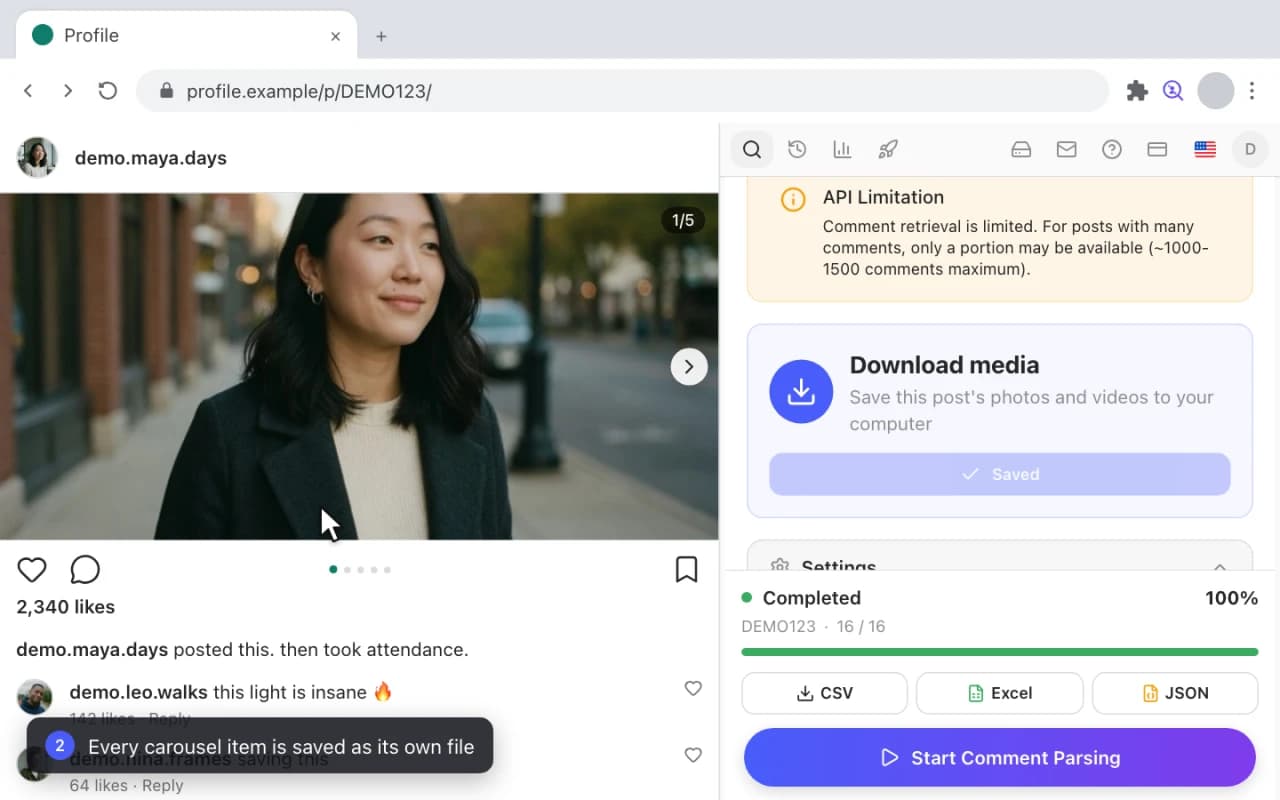
- Open a post and click Download media in the panel.
- The counter shows Downloading 1 of 5 as it works through the post.
- Every item of a carousel is saved as its own file, named after the post it came from.
- Open a story and the panel reports Story detected.
- Click Download media again and the current story is saved the same way.
How to Download Instagram Photos, Videos & Stories (Free, 2026)Media Downloader
Unfollow non-followers safely
A paced unfollow campaign built from your own following list, with a review screen before anything happens.
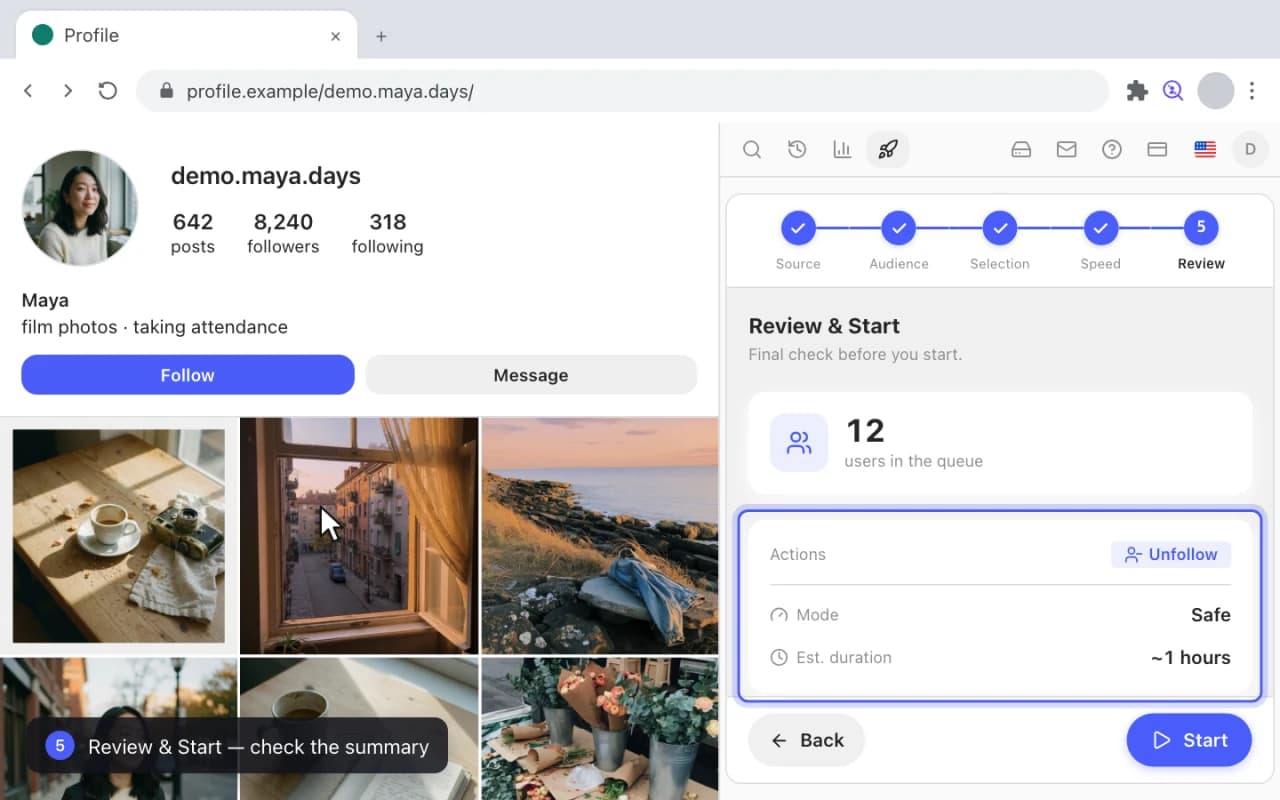
- Open Actions, then Manage, then Unfollow.
- Source — pick your own Following list as the queue to work from.
- Selection — narrow it down, here with First N accounts.
- Speed & Safety — choose Safe, the slowest and most conservative pacing.
- Review & Start — check the summary, start the run, and pause or stop it at any point from the running task card.
How to Mass Unfollow on Instagram Safely (Without Getting Blocked)Unfollowers TrackerMass Unfollow
Export comments and likes from a post
Two exports off a single post: everyone who commented, and everyone who liked it.
Follower ExportComment Exporter